

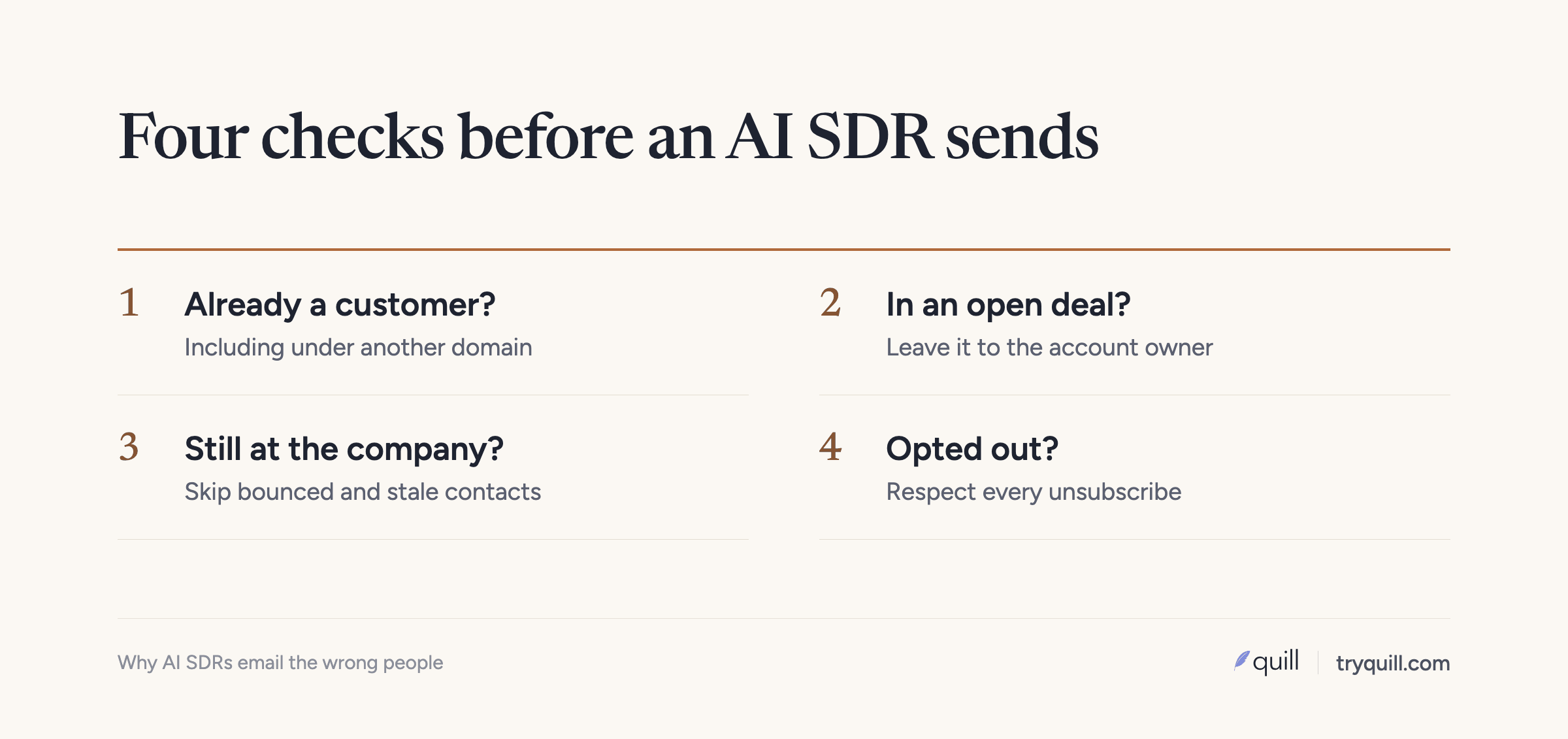
The short answer: AI SDRs email the wrong people because they trust the CRM, and the CRM doesn't clearly say who is already a customer, who is in an open deal, and who has left. The most damaging case is a customer whose company exists twice, once as a customer and once as a prospect under a different domain or name, so the agent finds the prospect copy and pitches your own customer. Fix customer and prospect duplicates, domains, hierarchy, and contact freshness, and have the agent check exclusions against the CRM right before every send.
Why this happens more with AI SDRs than with human reps
A human SDR who is about to email someone at a familiar company will often check first, ask in Slack, or remember that the account belongs to someone else. An AI SDR checks what it was configured to check, usually a field like lifecycle stage or account type on the record it found, and then sends.
It also sends at a volume no human team does. A mistake that a person would make once a month shows up across hundreds of emails in a day. And the people who notice first are usually the customer and their account manager.
One RevOps lead we work with put it plainly: the slippage people notice is the one where a client asks why you just emailed them. Everything else in the CRM can be a little messy for years without anyone outside the team seeing it.
The CRM problems behind wrong-person emails
A customer that also exists as a prospect
This is the case that does the most damage. The company signed, and its account is marked as a customer. But a second account exists for the same company, created earlier by a form fill, a list import, or an enrichment tool, and it is still marked as a prospect. The AI SDR builds its list from prospect accounts, finds that second record, and emails people at your customer. Acquisitions create the same problem at scale when two CRMs come together, which is why finding shared customers after an acquisition comes before any combined outbound.
The same RevOps lead drew a useful line here. Five duplicate records for the same prospect are annoying but not urgent. A prospect record that duplicates an active customer is the one to fix first, because it is the one that reaches the customer.
Different domains for the same company
Duplicates hide behind domains. A company moves from a .io to a .ai domain, rebrands, uses a regional domain, or a founder signs up with a personal email before the company has a website. One team found their SDRs working accounts that were already clients because the client's domain was slightly different, so nobody could find the customer record.
The CRM's own duplicate checks often miss these. HubSpot deduplicates companies by domain when they are created by hand or imported, but companies created through the API, including installed third-party sync apps, are not deduplicated by domain at all. Salesforce matching rules compare the fields you configure, such as company name and website, so a company that appears under a new name and a new domain often won't match its older record. In both CRMs, a domain that isn't stored anywhere on the existing record can't be matched to it.
Subsidiaries that aren't linked to the parent
Your customer is the parent company. The AI SDR finds a subsidiary or regional office that isn't linked to the parent in the account hierarchy, sees no customer flag on it, and treats it as new business. Depending on your motion that may be a fine expansion target, but it should be a deliberate choice made with the account owner, and the email should not read like a cold pitch.
Open deals and active conversations
A contact who is in an active evaluation should not get a generic sequence. If the AI SDR excludes by account status but not by open opportunity, or if the open deal sits on a duplicate account, the champion you are negotiating with gets a cold email from your own company.
Leads that were never matched to accounts
In Salesforce, leads are separate from accounts and contacts. A new lead from a customer's employee sits on its own until someone converts it or a lead-to-account matching tool such as LeanData links it. An AI SDR that works leads without checking for a matching account will treat a customer's employee as a new prospect.
Contacts who left, changed roles, or were attached to the wrong account
People change jobs constantly. A contact who moved from your customer to a new company is still listed at the customer, and the new company's record shows nobody. Contacts attached to the wrong company, often by an import that matched on a similar name, get messages about a company they don't work for. Both lead to bounces, confused replies, and sender reputation damage.
Suppression that lives in the wrong place
Many teams keep the do-not-contact list in the outbound tool, built once from a CRM report. New customers signed after the export aren't on it. If the AI SDR only checks its own list, it will miss anyone who became a customer or entered a deal after that snapshot.
How to stop an AI SDR from emailing your customers
1. Find and fix customer and prospect duplicates first
Search specifically for pairs where one record is a customer or has an open opportunity and the other is a prospect. Match on every domain the company uses, normalized company name, and shared contacts, not only on exact name. Merge or link these before you clean up prospect-to-prospect duplicates.
2. Record every domain a customer uses
Store alternate and former domains on the account in a field your matching can read. In HubSpot, adding additional domains to a company associates contacts and logged emails from those domains with the same company, which helps. HubSpot checks new companies against the primary domain (imports also check additional domains), so your own duplicate checks need to include every domain.
3. Link subsidiaries to their parent
Fix the account hierarchy for every customer and for every company in an open deal. Then make the exclusion rule roll up: if the parent is a customer, the children are excluded unless the account owner opts them in.
4. Exclude at the account level, from the CRM, right before each send
Build the exclusion from live CRM data: current customers, accounts with open opportunities, accounts owned by an account manager, partners, and competitors. Check it at send time, not only when the list is built. If your AI SDR can only read a static list, refresh it daily and include the domains from step 2.
5. Match leads to accounts
Make sure every new lead is checked against existing accounts by domain before any outbound tool sees it, using Salesforce matching rules, a routing tool, or your own process.
6. Refresh contacts before they enter a sequence
Verify email and employment for contacts before they enter a sequence, and move contacts who left to their new company rather than deleting the history.
7. Watch the first sends and keep checking
Review the first few hundred emails by hand against your customer list. Then keep measuring customer-prospect duplicates every week, because a cleanup before launch doesn't stay clean: forms, event and conference list imports, and the enrichment and sequencing tools that sync into the CRM keep creating new copies. How to measure CRM data quality shows how to track that number over time. For the broader checklist before any agent goes live, see how to get your CRM data ready for AI agents.
How Quill helps
Quill's CRM Hygiene agents find the duplicates that put customers into outbound, including customer and prospect copies under different domains and names, link subsidiaries to their parents, and flag contacts who have moved. Each proposed fix comes with the evidence, a person approves what matters, and the agents keep running so new duplicates are caught as integrations create them. Book 15 minutes and we can check your customer list against your prospect records.
Frequently asked questions
Why did our AI SDR email an existing customer?
Usually because the customer also exists in the CRM as a prospect, under a different domain or name, or as a subsidiary not linked to the parent account. The AI SDR found the prospect record and saw nothing marking it as a customer. Fixing those duplicates and excluding customers at the account level stops most of it.
How do I exclude customers from AI SDR outreach?
Build the exclusion from live CRM data at the account level: customers, accounts in open deals, and accounts owned by an account manager, including all their domains and subsidiaries. Have the AI SDR check it right before each send instead of relying on a one-time export.
Why doesn't HubSpot catch duplicate companies with different domains?
HubSpot deduplicates companies by domain on manual creates and imports, checking the primary domain on new records and both primary and additional domains on imports. Companies created through the API, including installed third-party sync apps, aren't deduplicated by domain at all. A company that shows up under a domain its existing record doesn't have needs a separate check.
Should AI SDRs work leads or contacts in Salesforce?
Either can work, but leads need to be matched to existing accounts first. A lead from a customer's employee looks like a new prospect until it is linked to the customer account, so run lead-to-account matching before outbound tools see new leads.
How often should we check for customer and prospect duplicates?
Weekly at minimum while an AI SDR is running, and ideally continuously. Imports, forms, and enrichment and sequencing integrations keep creating new duplicates, so a one-time cleanup before launch doesn't hold.