

The short answer: Salesforce's duplicate rules and merge tools only work inside one org, so to deduplicate accounts across two orgs you match them outside Salesforce before you migrate. Export accounts and their contacts from both orgs, normalize names and domains, match on several signals at once, have a person review the uncertain matches, and record each decision in a crosswalk table. Then load the surviving accounts into the target org with an external ID so every contact, opportunity, and activity lands on the right record.
This post covers why the in-org tools fall short, a step-by-step process for cross-org matching, and the mistakes that cause trouble after cutover. For the full org merge (metadata, users, integrations, and cutover), see how to merge two Salesforce orgs after an acquisition. This post is one part of the larger playbook in how to consolidate CRMs across a private equity roll-up.
Why Salesforce's own duplicate tools don't cover two orgs
Salesforce Duplicate Management is built around matching rules and duplicate rules that compare records in the same org. They are useful for catching a rep who creates "Acme Inc" when "Acme, Inc." already exists. They have no way to look at records in a second org, so they can't tell you that an account in the acquired company's org is the same customer as one in yours.
The merge tool has similar limits. In Lightning Experience you can merge up to three accounts at a time, and only accounts that already live in the same org. The records you are comparing across orgs don't exist side by side until you load them, and once they are loaded as separate accounts you are back to merging them three at a time, in the target org, with reps already working them.
There is a practical problem too. Native merge needs the right permissions on every related record. If a teammate has greater access to one of the accounts, Salesforce requires Modify All Data to complete the merge. At one company, merges regularly failed on permission errors tied to related contacts and campaign members, which turned a simple cleanup into a queue of exceptions. Doing the matching before the load avoids most of those merges entirely.
What makes cross-org matching harder than in-org deduplication
Inside one org, duplicates usually come from the same people and integrations, so they share habits. Across two orgs you are comparing two different teams' conventions:
- Names. One org has "IBM", the other "International Business Machines Corp." One strips legal suffixes, the other keeps them.
- Domains. One team records the parent's domain, the other a regional or product domain. A company that rebranded may appear under its old domain in one org and its new one in the other.
- Structure. One org models the legal entity, the other models a division or a brand. The same logo can be one account in your org and four subsidiary accounts in theirs.
- Account types. Salesforce can't merge a person account with a business account. If one org uses person accounts for small customers and the other uses business accounts, you need a decision about which model wins before matching means anything.
- Record IDs. Salesforce record IDs are specific to the org that created them. An ID from the acquired org tells you nothing in yours, so you need your own key to join the two.
How to deduplicate accounts across two Salesforce orgs, step by step
1. Agree on the target data model first
Decide which org is the destination and settle the account model before you match anything: record types, business versus person accounts, how parents and subsidiaries are represented, and which fields are required. Matching against a model that is still changing means redoing it.
2. Export accounts with the context you'll need to match
Export accounts from both orgs with their Salesforce IDs, names, websites, billing addresses, phone numbers, owners, parent account IDs, and any identifiers you already store such as a D-U-N-S number or a tax ID. Export contacts with their email addresses and account IDs too. Contact email domains are often the best evidence that two accounts are the same company, because reps type websites inconsistently but email addresses come from real correspondence.
3. Clean up each org on its own first
Deduplicate inside each org before you compare them. If the acquired org has three copies of the same customer and yours has two, cross-org matching turns that into a cluster of five, and every decision gets harder. Clearing in-org duplicates first also shrinks the volume you have to review.
4. Normalize the fields you match on
Standardize names by removing legal suffixes and punctuation, lowercase everything, and reduce websites to a root domain. Parse addresses into consistent parts. Map country and state values to one format. This alone collapses a large share of obvious matches.
5. Match on several signals at once
Exact matching on name or domain finds the easy cases. The rest need a combination: normalized name, root domain, contact email domains, address, phone, shared contacts, and hierarchy. Score each candidate pair and sort them into tiers:
- High confidence. Same root domain and matching names, or several shared contact emails. These can usually be approved in bulk after spot checks.
- Needs review. Similar names with different domains, or the same domain on what look like different divisions. A person should look at each.
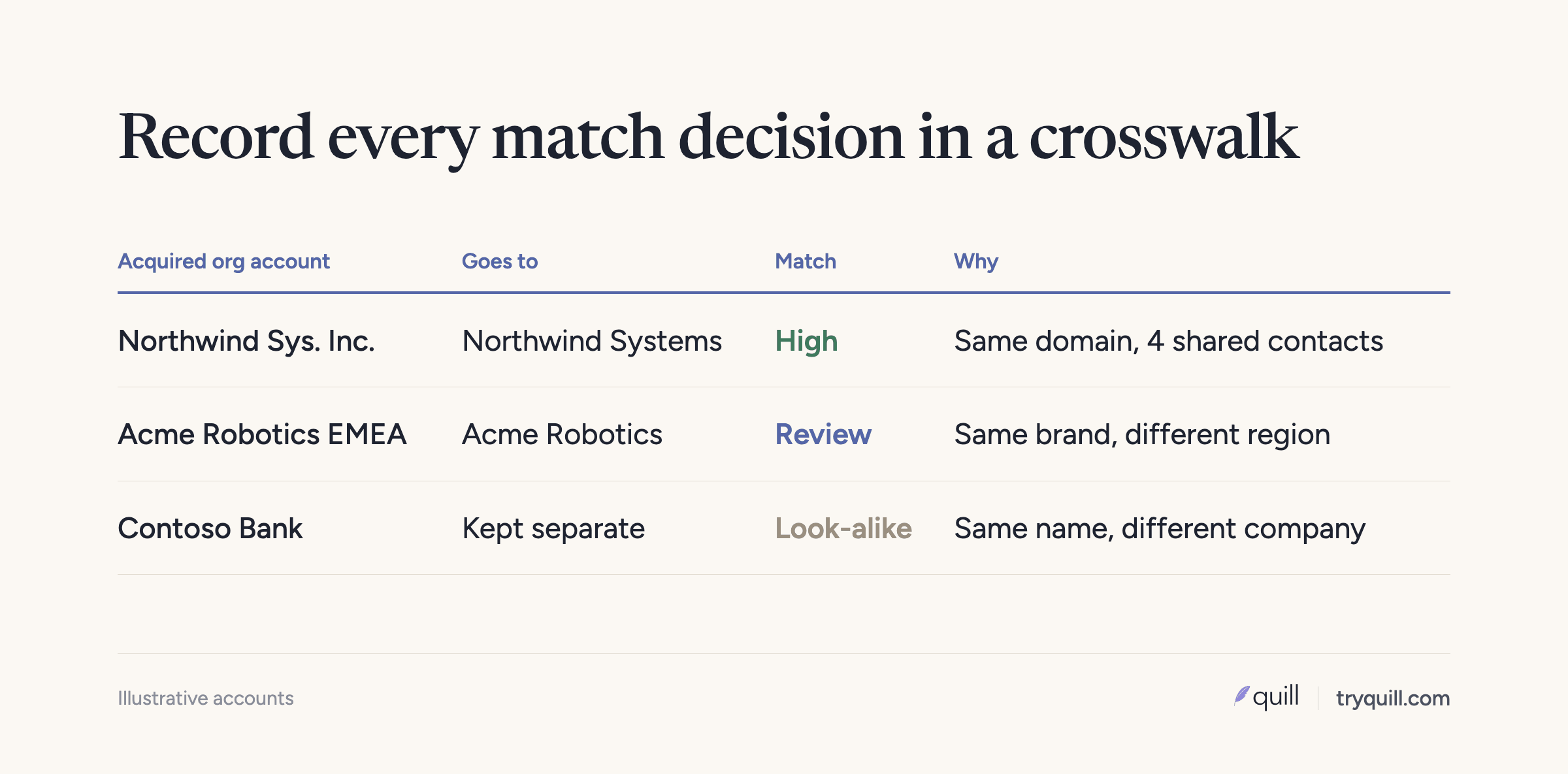
- Different companies that look alike. Two unrelated businesses with the same common name. Keep these apart and note why, so nobody merges them later.
Watch the last tier closely. One team we work with had paid for an outsourced cleanup that rolled accounts up by common name, attaching a small warehousing business to a well-known brand's parent. Where the CRM data can't settle a match, look the company up and confirm whether the two records are the same business, a parent and subsidiary, or unrelated.
6. Decide which values survive
For each matched pair, decide what the merged account will say: owner, industry, address, employee count, lifecycle status. Write these as field-level rules rather than choosing a winning record, and agree on ownership with sales leadership before anything moves. Survivorship rules for CRM records covers how to set them.
7. Build a crosswalk table
Record every decision in one table: source org, source account ID, target account ID (or "new"), match tier, the evidence, and who approved it. The crosswalk is how you load related records correctly, how you answer "where did this account go?" six months later, and how you reconnect anything outside Salesforce, such as billing or support systems, that stored the old ID.
8. Load with external IDs so related records land correctly
Create an external ID field on Account in the target org and populate it with the source account ID. When you load contacts, opportunities, and activities, use Data Loader's upsert with that external ID as the lookup, so each child record attaches to the right account without you translating IDs by hand. For accounts that matched an existing target account, write the source ID into that account's external ID field (or a separate legacy ID field) so the children of both records end up in the same place.
If you want the original created dates and creators preserved, an admin can enable "Set Audit Fields upon Record Creation." Audit fields can only be set when a record is inserted through the API, so plan this before the first load. Created By needs the matching user ID in the target org, and any triggers or flows that update records on insert will overwrite the last modified values, so pause them during the load.
9. Check each wave before the next one
Load in order: accounts, then contacts, then opportunities, then activities. After each wave, compare record counts to the crosswalk, check that contacts sit on the expected accounts, confirm no open opportunity lost its account, and run your in-org duplicate jobs to catch anything the matching missed.
Which duplicates to fix first
Not all duplicates cost the same. A prospect account duplicated five times is untidy. A customer that exists as an active account in one org and a prospect in the other is a real problem: after cutover, the prospect copy gets routed to an SDR, lands in outbound sequences, and your customer gets a cold email. A RevOps leader at one of our customers called that the duplicate that actually hurts. Put matches between customer records and prospect records at the top of your review queue, and use the overlap list to hand shared accounts to the right owner. How to find shared customers after an acquisition goes deeper on that list.
Mistakes that show up after cutover
- Merging too early. Once two customers are merged, unpicking them means sorting activities, contacts, and deals by hand. Leaving a duplicate in place for a week is cheaper than a wrong merge.
- Dropping the losing record's context. In a Salesforce merge, related records such as activities and campaign memberships move to the surviving account, but field values you didn't select are gone. Capture anything you need from the losing record before the merge.
- Forgetting integrations. Tools connected to the acquired org (enrichment, sequencing, billing sync) will keep writing in the old format or create new accounts in the target org if you point them at it without changes. Review each integration's matching behavior before you reconnect it.
- Stopping after cutover. The first month is when a combined org gets messy fastest, because reps from the acquired team create accounts for customers they can't find. Keep the duplicate checks running daily for that month, then keep them running.
How Quill helps
Quill's agents read both Salesforce orgs at once, find duplicates within and across them, and match the same customer using names, domains, contact emails, addresses, and hierarchy, with a lookup when the CRM data isn't enough. Every proposed match comes with the evidence behind it, and nothing is written until a person approves it, or until you choose to auto-approve the high-confidence tier. See CRM Migration or Merger for the full process, and CRM Hygiene for keeping the combined org clean afterward. If you are a private equity platform merging one add-on's org after another, see Quill for private equity. If you have an org merge coming up, book 15 minutes.
Frequently asked questions
Can Salesforce find duplicates between two different orgs?
No. Salesforce matching rules and duplicate rules compare records inside a single org, and the merge tool only works on records in the same org. To find duplicates across two orgs you need to export both and match them outside Salesforce, or use a tool that can read both orgs at once.
Should I dedupe before or after migrating the data?
Before, as much as you can. Deduplicate each org on its own, match across the two, and load one surviving account per customer. Merging after the load means working through duplicates three at a time in an org your reps are already using, with permission errors and more room for mistakes.
How do I keep contacts and opportunities linked to the right account during migration?
Create an external ID field on Account in the target org, store each source account's ID in it, and upsert child records using that external ID as the lookup. For source accounts that matched an existing account, write the source ID onto the existing account so both sets of child records attach to it.
What fields are best for matching accounts across orgs?
Root website domain and contact email domains are the strongest signals, followed by normalized company name, billing address, and phone. Use them together and score the match, because any single field produces both false matches and misses.
Can I keep the original created dates when moving records to another org?
Yes, if an admin enables "Set Audit Fields upon Record Creation" before you load. You can then set Created Date and Created By when inserting records through the API. These fields can't be changed after a record exists, so set them on the first load.