

The short answer: To prepare for a Dynamics 365 to Salesforce migration, clean the data in Dynamics first, using its duplicate detection rules and merge tools, then map each Dynamics table, choice, and owner to its Salesforce equivalent. The differences that cause the most trouble are the Dynamics customer lookup (which can point to an account or a contact), owner teams and business units, per-record exchange rates, and connections. Store every Dynamics record ID in an external ID field in Salesforce, load in dependency order with upsert, test a small batch, and check the result.
This post covers the Dynamics-specific parts of a Microsoft Dynamics to Salesforce data migration, whether you run Dynamics 365 online or an older on-premises Dynamics CRM. For the general checklist that applies to any CRM, start with how to clean your CRM data before a migration.
How does the Dynamics 365 data model differ from Salesforce?
Both CRMs have accounts, contacts, leads, opportunities, and activities. The differences are in how records point to each other, who owns them, and how values are stored, and each one needs a decision before you map fields.
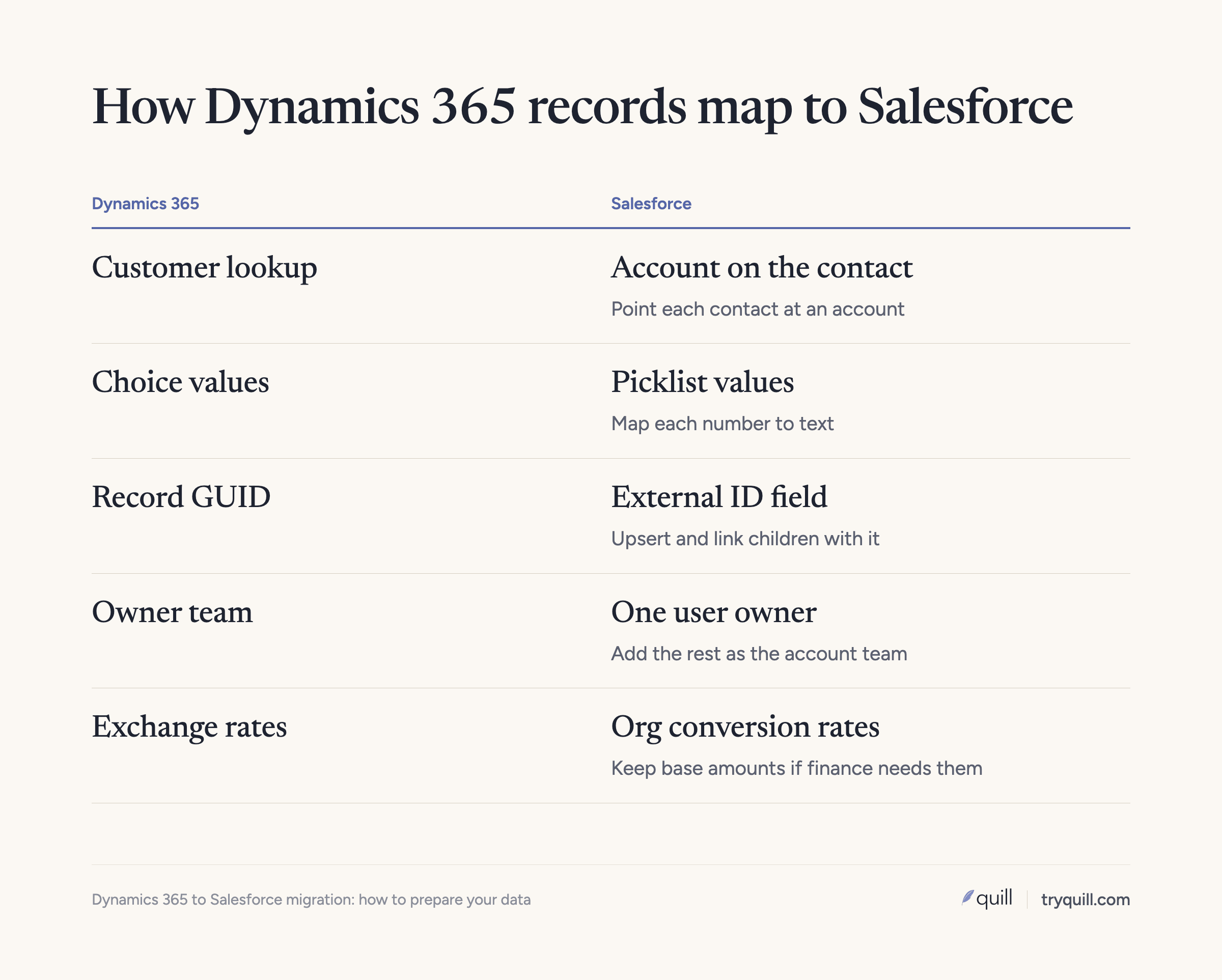
The customer lookup can point to an account or a contact
Dynamics has a lookup type called Customer that can reference either an account or a contact. The contact's Company Name (parentcustomerid) is one of these, and so is the opportunity's Customer (customerid). So in Dynamics, a contact's parent can be another contact, and an opportunity's customer can be a person with no company.
Salesforce doesn't work that way. A contact's Account Name field points to an account, and Salesforce treats a contact without an account as private: only its owner and admins can see it, regardless of your sharing model. Before the load, pull every contact whose parent is a contact and every opportunity whose customer is a contact, and decide what each should become. The usual options are to attach it to the real company account, create an account for it, or, if you sell to individuals, use Salesforce person accounts. Person accounts are generally treated as permanent once enabled, so test them in a sandbox first.
Qualified leads already have accounts, contacts, and opportunities
When someone qualifies a lead in Dynamics, the system can create or link an account, a contact, and an opportunity, and the lead moves to a closed, qualified status. Disqualified leads stay in Dynamics so they can be reactivated later. So many Dynamics leads describe people who already exist as contacts. We usually load only open leads into Salesforce and archive the rest, so reps don't see the same person twice.
Parent account hierarchies
Both CRMs have a Parent Account field on accounts, so the hierarchy maps directly. Load parents before children, fill the parent link from your external IDs, and first look for orphans: accounts whose parent is inactive, merged, or not being migrated.
Option sets become picklists
Dynamics calls its dropdowns choices, formerly option sets. Each option has a label that people see and a numeric value stored in the database, and a choice can be local to one column or global and shared across columns.
Salesforce picklists store the value itself as text. Map each Dynamics numeric value to a Salesforce picklist value, and decide what happens to retired options. Multi-select choices map to multi-select picklists. This is also the moment to trim: retire options nobody uses and move the records that still carry them to a current value, which is cheaper during mapping than after go-live.
Dynamics record IDs are GUIDs
Every Dynamics row has a unique identifier column that stores a GUID. Salesforce assigns its own record IDs when records are created, so the Dynamics GUID doesn't carry over by itself. Create a text field on each Salesforce object you load, mark it External ID and Unique, and fill it with the Dynamics GUID. You will use it to upsert, to link child records to parents, and to reconcile counts. Any system that stored Dynamics IDs, such as billing or a data warehouse, will need your old-to-new ID crosswalk too.
Connections and relationships
Dynamics connections let people link two records with a named role, such as stakeholder, former employer, or influencer, without a formal table relationship. Salesforce has no single object that matches this.
Sort your connections by what they describe. A contact who works with several accounts can become an indirect account-contact relationship, if you enable Contacts to Multiple Accounts. Those relationships load with Data Loader, not the Data Import Wizard, and the contact needs a primary account first. A contact's role on a deal maps to opportunity contact roles. Anything else, such as partner or referral links, needs a custom object or can stay in the archive.
Activities, notes, and attachments
In Dynamics, emails, phone calls, appointments, and tasks all share a base activity table and point at a record through the Regarding lookup. Emails and appointments also use party lists, which can hold several people in To, Cc, or attendee fields. Notes are a separate table: each note is attached to a record and can carry one file.
In Salesforce, phone calls and to-dos become tasks, appointments become events, and emails become tasks or, with Enhanced Email, EmailMessage records. Decide which person each multi-party activity is linked to. One limit to plan around: Salesforce's help documentation says Data Loader can't match an activity's Related To and Name fields by external ID, so you need to look up the new Salesforce IDs from your crosswalk for every activity. Documents stored through SharePoint integration live outside Dynamics and need their own plan.
Owners, business units, and teams
In Dynamics, a record's owner can be a user or an owner team, and every record belongs to a business unit, which acts as a security boundary. Salesforce controls visibility with the role hierarchy, sharing settings, and, if you use them, sales territories, and it doesn't use owner teams the way Dynamics does. Account teams and opportunity teams give people access to a record, but the account still has a single owner.
For every account and opportunity owned by a Dynamics team, pick the Salesforce user who will own it, and add the rest of the team as account team members if you use them. Map every Dynamics user to a Salesforce user, and decide where records owned by people who have left will go. Don't recreate business units one-for-one. Decide how you want visibility to work in Salesforce, then map business units to roles or territories to match.
Currencies
Dynamics stores a transaction currency and an exchange rate on each record, plus a base-currency copy of every money field (the _Base columns). The rate is fixed on the record.
In Salesforce, multiple currencies are off by default, and turning them on is generally treated as permanent, so confirm with Salesforce before you enable it. Salesforce stamps existing records with a default currency when you enable it. Converted amounts use the current rate for your org, and changing a rate updates converted amounts on all records, including closed opportunities, unless you use advanced currency management for dated rates on opportunities. If finance needs the historical base amounts that Dynamics calculated, copy them into a custom field on the way in.
How to prepare your data for a Dynamics 365 to Salesforce migration
1. Measure what you have
Count records by table, and for accounts and contacts, measure duplicates, empty key fields (website, email, country), inactive owners, and records with no activity in years. Agree on what not to move: old closed-lost deals, disqualified leads, and bounced contacts can go to an archive you can still query.
2. Deduplicate in Dynamics first
Dynamics includes duplicate detection rules for accounts and contacts, and you can add rules for other tables. You can publish up to five rules per base record type, and a bulk duplicate detection job will check existing records on a schedule. Its built-in merge works on accounts, contacts, and leads, two records at a time. When you merge, related child records move to the surviving record.
That works for a few hundred pairs and is slow for thousands. Whatever tool you use, merge in Dynamics, where people still recognize the records, so the duplicates never reach Salesforce. Exact-match rules also miss look-alikes, such as "Acme Corp" and "ACME Corporation, Inc.", which is where matching on domain, address, and contacts helps. Our post on avoiding duplicate companies and contacts when moving to HubSpot covers the same matching problem from the other direction.
3. Standardize the fields you will match and route on
Clean website domains, country and state values, phone formats, and company names. These fields feed Salesforce duplicate rules, assignment rules, and territories after go-live.
4. Map objects, fields, choices, and owners
Build a mapping sheet with one row per field: Dynamics table and column, Salesforce object and field, transformation, and owner of the decision. Include the choice-to-picklist value map, the Dynamics user and team to Salesforce user map, the rule for customer lookups that point to contacts, and the currency plan.
5. Load in dependency order with upsert
Create the external ID fields, then load in this order:
- Users, with a map of Dynamics user IDs to Salesforce user IDs
- Accounts, parents before children
- Contacts, linked to accounts by the Dynamics GUID
- Opportunities, then contact roles and account-contact relationships
- Activities, then notes and files
Use upsert on the external ID field, not insert. If a batch fails halfway, you can run it again without creating duplicates, and child records can reference parents by the Dynamics GUID instead of the new Salesforce ID. Mark the field Unique so each Dynamics GUID can only ever match one Salesforce record. Turn off or bypass Salesforce flows, validation rules, and assignment rules for the migration user while loading.
6. Test a small batch, then rehearse
Load one record, then a few hundred, into a sandbox, and check owners, parent accounts, contact links, picklist values, currency amounts, and activity timelines. Then run and time the full load in a full-copy sandbox.
7. Check after the load
Compare record counts per object against Dynamics and your crosswalk. Check that every account and opportunity has an active owner, that hierarchies are intact, that no contacts landed without an account, and that duplicate rules in Salesforce aren't already flagging new pairs. We cover the full list in what to check after a CRM migration.
The same approach works for other legacy CRMs
If you are leaving Oracle Siebel, SAP CRM, or a homegrown system instead of Dynamics, the sequence is the same: clean in the source, map every object and value, keep the legacy IDs in external ID fields, load in dependency order with upsert, and check the result. The specific traps differ by system, so profile the source data before you commit to a mapping.
How Quill helps
Quill builds AI agents that keep CRM data accurate. In a Dynamics 365 to Salesforce migration, our agents profile the Dynamics data, find duplicates and look-alike accounts that exact-match rules miss, and match Dynamics records against anything already in Salesforce. Every proposed merge or match comes with the evidence behind it, and nothing is written until a person approves it. After go-live, the same agents keep the new org clean. See CRM Migration or Merger for how it works, or book 15 minutes if you have a Dynamics migration coming up.
Frequently asked questions
How do you migrate from Dynamics CRM to Salesforce?
Clean and deduplicate the data in Dynamics, map each table, field, choice, and owner to Salesforce, and store every Dynamics record ID in an external ID field. Then load users, accounts, contacts, opportunities, and activities in that order with upsert, test in a sandbox first, and check counts and relationships afterward.
What happens to Dynamics GUIDs when you move to Salesforce?
They don't carry over as Salesforce record IDs, because Salesforce assigns its own. Create a unique external ID text field on each Salesforce object and load the Dynamics GUID into it. Use it to upsert, link child records, and update systems that stored the old IDs.
How do Dynamics option sets map to Salesforce picklists?
Each Dynamics choice option has a numeric value and a label, while a Salesforce picklist stores the value as text. Build a value map from each Dynamics number to a Salesforce picklist value, and decide what happens to retired options before you load. Multi-select choices map to multi-select picklists.
How do Dynamics owner teams and business units map to Salesforce?
There is no direct equivalent. Pick a single user to own each account and opportunity that a Dynamics team owns, and add the rest of the team as account team members if you use account teams. Rebuild visibility with Salesforce roles, sharing settings, and territories based on how you want access to work, not on the old business unit tree.