

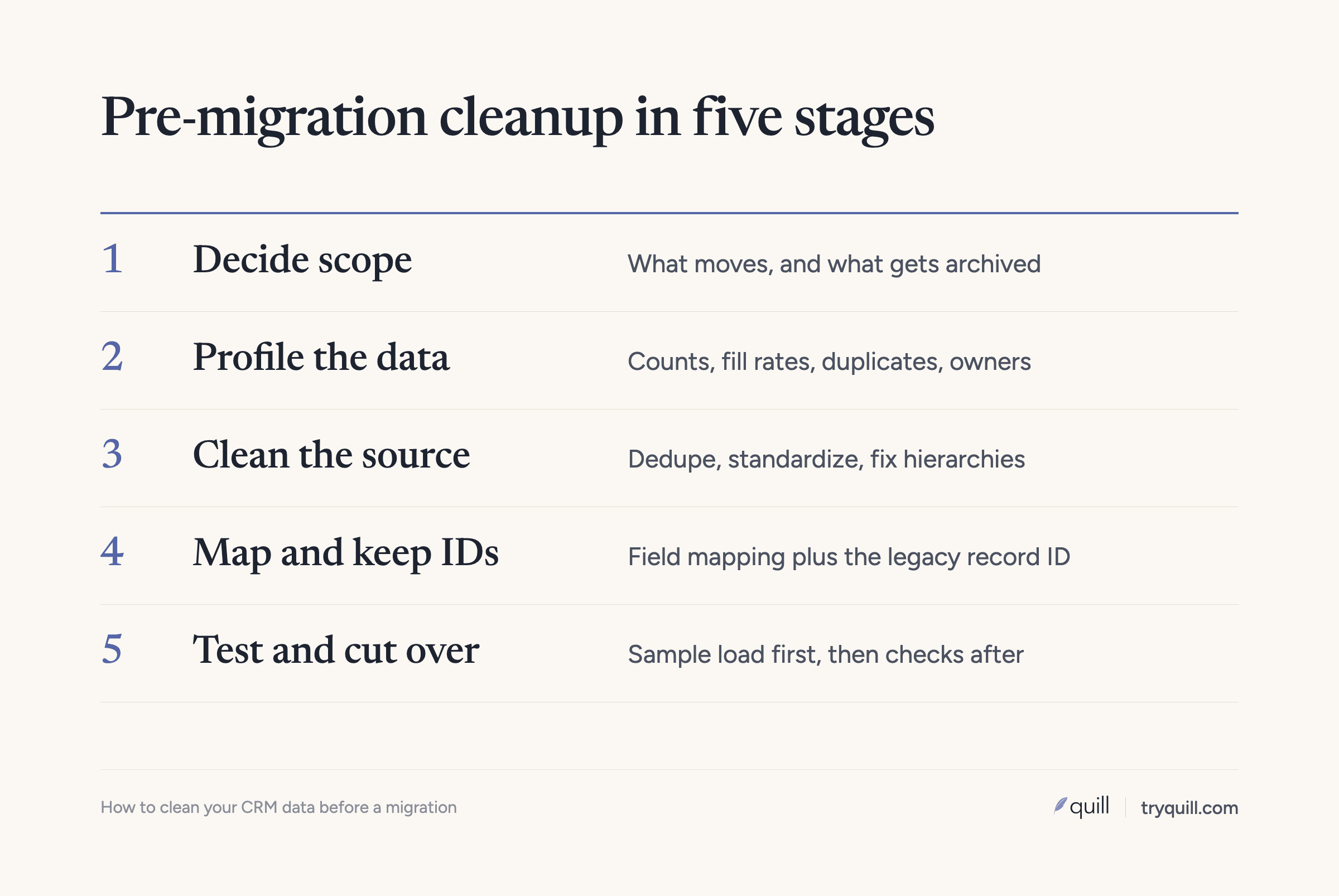
The short answer: To clean CRM data before a migration, first decide which records are worth moving and archive the rest, then profile what is left, remove duplicates inside the old CRM, and standardize picklists, fields, and formats. Fix account hierarchies and ownership, map every field and object to the new CRM, and save each record's original ID on the migrated record. Then carry over opt-outs, run a test migration, and plan the checks you will run after cutover.
This checklist applies whether you are moving from Salesforce to HubSpot, from HubSpot to Salesforce, off Microsoft Dynamics 365, or off a legacy system such as Siebel or SAP CRM. If you are still deciding whether to move at all, start with switching CRM systems: what to decide before you move your data. For how Quill handles the cleanup and matching, see CRM Migration or Merger.
Why clean CRM data before a migration instead of after?
Everything you move has to be mapped, loaded, checked, and supported in the new system. Every duplicate account, unused field, and record owned by someone who left becomes work in the new CRM, and some of it becomes harder to fix there.
Cleaning before the move does not remove the need to check afterward. The migration itself can break things: relationships that don't load, owners who don't exist in the new system, and duplicates created while both systems were running. Plan for both: clean before, and check after.
A pre-migration data cleanup checklist
The ten steps below are the CRM migration best practices we see work most often, and they run roughly in order. Steps 1 to 5 happen in the old CRM. Steps 6 to 8 prepare the load. Steps 9 and 10 cover testing and cutover.
1. Decide what to migrate and what to archive
Not every record deserves a place in the new CRM. Write down rules for what moves, agreed with sales, marketing, customer success, and finance. Typical candidates to leave behind:
- Leads with no activity in several years and no open opportunity.
- Contacts with bounced emails and no other way to reach them.
- Closed-lost opportunities older than your reporting window.
- Test records, sample data, and records created by integrations that you no longer use.
- Custom fields that are empty on nearly every record or that nobody has updated in years.
Archive what you leave behind in a form you can search later, such as a full export in a data warehouse or a file store with a clear owner. Some teams need old records for audits or long sales cycles. Check your retention obligations before you remove anything.
2. Profile the data you are keeping
Measure the data before you change it. For each object, count records, and for each field that matters, check how often it is filled in, how many distinct values it has, and what those values look like. For example:
- How many accounts have no website or domain?
- How many accounts, contacts, and opportunities belong to inactive users?
- How many picklist values are in use, and how many are variations of the same thing?
- How many contacts are not linked to an account?
- How many duplicate accounts and contacts are there, roughly?
The profile tells you how big the cleanup is, which fields are worth mapping, and what "done" looks like. Keep it for comparison after the migration.
3. Deduplicate within the source CRM
Merge duplicates in the old CRM before you move anything. Otherwise every duplicate arrives in the new CRM, and if you are also combining data from a second system, two copies on one side and one on the other become a cluster of three records that is harder to untangle.
Deduplicate accounts or companies first, then contacts, then leads against contacts. Match on more than the name: compare domains, including the domains in contact email addresses, billing addresses, phone numbers, and shared contacts. Decide in advance which record survives and which values win when two records disagree. Survivorship rules covers how to set those rules.
Review look-alike records before merging them. Two companies with the same name in different cities, or a parent and its subsidiary, are not duplicates.
4. Standardize picklists, fields, and formats
Clean values so they map cleanly. Consolidate picklist values that mean the same thing ("USA", "US", "United States"). Standardize country and state names, phone formats, and website values so domains can be compared, for example by removing "https://", "www.", and trailing paths. Retire picklist values that are no longer used and move the records that still carry them to a current value.
Old values cause problems beyond the migration. In one cleanup we ran, retired picklist values still sitting on some records were blocking merges of duplicate accounts until those values were cleaned up.
5. Fix account hierarchies and ownership
Parent and child account links are easy to lose in a migration and hard to rebuild afterward. Before the move, check that subsidiaries point to the right parent, that there are no loops or orphaned children, and that the hierarchy reflects how you actually sell and report.
Then fix ownership. Reassign accounts, contacts, and open opportunities owned by people who have left, using your territory or segment rules, and agree with sales leadership on any disputed accounts. The new CRM should start with every record owned by an active user who exists in it.
6. Map fields and objects to the target CRM
Build a mapping document that lists, for every object and field you are keeping, where it goes in the new CRM, how values translate, and who approved the mapping. Pay attention to the places where CRMs model data differently:
- Objects: Salesforce separates leads from contacts, while HubSpot uses one contact object with lifecycle stages. Dynamics 365 calls objects tables.
- Stages: map every opportunity or deal stage to a stage in the new pipeline, and keep the original stage in a field for reporting.
- Picklists: map every value, including the ones you cleaned in step 4.
- Relationships: list which lookups and associations must be rebuilt, such as contact to account, opportunity to account, and activity to contact.
- Dates: decide where original created dates will live. In Salesforce, audit fields such as Created Date can be set only when a record is created, and only with the right permission enabled before the load.
7. Save the source record ID on every record
Every record gets a new ID in the new CRM. Create a field on each object, such as "Legacy CRM ID", and fill it during the load. In Salesforce, marking it as an External ID field lets Data Loader upsert on it and relate child records to parents using the old ID instead of the new Salesforce ID. In HubSpot, a custom property that requires unique values can serve as a matching key on import.
Keep a crosswalk of old ID to new ID as well. You will use it to reattach activities, rerun failed batches without creating duplicates, and repoint other systems. Billing, the ERP, the data warehouse, and marketing tools often store CRM record IDs. If finance reports or invoices are keyed to the CRM record ID, a changed ID without a crosswalk breaks those links.
8. Carry over consent and opt-outs
People who unsubscribed or asked not to be contacted in the old CRM must stay that way in the new one. Export unsubscribe status, subscription preferences, and any consent records with their dates and sources, and load them before you turn on any email or sequences in the new system. In HubSpot, importing an opt-out list marks those addresses as unsubscribed from all email and disqualifies them from marketing emails and sequences.
This is general information, not legal advice; check with your counsel.
9. Run a test migration
Load a representative sample into a sandbox or test environment first. Include messy records on purpose, such as accounts with no domain and opportunities owned by inactive users. After the test load, compare counts against the source, open records to check that relationships and owners are right, and ask a few people from sales and customer success to look at accounts they know well. Fix the mapping and rerun until the test is clean.
10. Plan the cutover and the checks after it
Pick a cutover date, freeze changes in the old CRM, and decide how long it stays available as read-only. Load in dependency order: users, then accounts or companies, then contacts, then opportunities, then activities and files. Reconnect integrations one at a time, and check how each one matches existing records before you turn it on, because integrations are a common source of new duplicates.
After cutover, compare the new CRM against the profile from step 2: record counts, owners, hierarchies, associations, and duplicates. What to check after a CRM migration lists the checks in detail. Keep running duplicate checks for the first few weeks.
How to choose tools for a CRM migration
Most migrations use a mix of three kinds of tools.
- Native import tools. Every major CRM has one. In Salesforce, the Data Import Wizard handles up to 50,000 records at a time for common objects, and Data Loader handles larger volumes and any object, with insert, update, upsert, and export. HubSpot's importer can update existing records by record ID, email, company domain, or a unique custom property. Attio imports CSV files and matches companies on domain and people on email. These tools are free and well documented, and they load what you give them, so the cleaning has to happen before.
- Migration apps and services. Third-party migration apps, listed on the Salesforce AppExchange and the HubSpot App Marketplace, move data between CRMs through their APIs and handle object mapping, associations, and activities. Systems integrators and consultancies run migrations for companies that want a partner to own the project. Check how each tool matches existing records and whether it creates duplicates when a match isn't exact.
- Cleanup and matching tools. Deduplication and data quality tools, such as the duplicate rules built into Salesforce and Dynamics 365, HubSpot's duplicate management, and third-party tools like DemandTools or Insycle, clean data inside one system. Matching the same customer across two systems, or deciding which records to leave behind, usually needs a separate step. Quill's agents do that cleanup and cross-system matching.
What changes by migration path?
The checklist is the same for every path. The details that go wrong differ.
Salesforce to HubSpot
HubSpot matches companies on domain and can create companies automatically from contact email domains, so missing or messy Salesforce websites become duplicate companies. Clean websites and merge duplicate accounts first. See Salesforce to HubSpot migration: how to avoid duplicate companies and contacts.
HubSpot to Salesforce
The hardest part is deciding how HubSpot's lifecycle stages map to Salesforce leads, contacts, and opportunities, and making sure contacts land on the right accounts. See HubSpot to Salesforce migration: how to clean up your data before you move.
Dynamics 365 to Salesforce
Dynamics tables, option sets, and team ownership all need explicit mapping, and years of accumulated records usually need a scope decision first. Dynamics includes default duplicate detection rules for accounts and contacts, which help, but check what they cover before relying on them. See Dynamics 365 to Salesforce migration: how to prepare your data.
Moving to or from Attio
Attio uses domain as the unique key for companies and email address for people, and a CSV import updates the existing record when those values match. Import companies before people, clean domains and emails before you start, and review records without either, since Attio can't match them. Email and calendar syncing can create people and companies automatically, so pause it during the import. Moving off Attio, export companies, people, lists, and notes, and keep each record's Attio ID for the crosswalk.
Legacy CRMs such as Siebel or SAP CRM
Older on-premises systems usually carry the most years of data, heavily customized data models, and the most records owned by people who left long ago, so step 1 matters most here. Timelines are often set by the vendor's support dates: SAP provides mainstream maintenance for SAP Business Suite 7 core applications, which include SAP CRM 7.0, until the end of 2027, with optional extended maintenance until the end of 2030.
If the migration is part of an acquisition, the same steps apply, with matching across both systems added. See how to merge two Salesforce orgs after an acquisition.
How Quill helps
Quill's AI agents clean, dedupe, and match CRM records before, during, and after a migration. Before the move, they profile the source CRM and find duplicates, broken hierarchies, missing fields, and records owned by people who left. During the move, they match the same customer across systems on names, domains, contact emails, addresses, and shared contacts, and apply your rules for which values win. After cutover, they check counts, owners, and links, and keep catching new duplicates. Every proposed change comes with its evidence, and a person approves it before anything is written. See CRM Migration or Merger and CRM Hygiene, or book 15 minutes.
Frequently asked questions
Should you clean CRM data before or after migration?
Before, and then check again after. Cleaning before the migration means fewer records to move, fewer fields to map, and no automation rebuilt around bad data. A check after the migration catches what the move itself broke, such as missing relationships, unassigned owners, and new duplicates.
What should a CRM data migration checklist include?
It should cover scope and archiving, a data profile, deduplication, standardized picklists and formats, hierarchy and ownership fixes, a field and object mapping, source record IDs, consent and opt-outs, a test migration, and cutover checks. The order matters: clean in the old system first, then map, then test, then load.
How long does data cleansing before migration take?
It depends on the state of the data more than the number of records. A clean CRM with few duplicates may need a few weeks of preparation, while a CRM with years of duplicates, unused fields, and inactive owners can take months. Profile the data early so you can size the work before you commit to a cutover date.
What is the best CRM migration tool?
There isn't one best tool, because most migrations combine native import tools, a migration app or partner, and a cleanup tool. Cleanup and matching tools handle the duplicates and cross-system matching that import tools assume are already done.
How is an enterprise CRM migration different?
Enterprise CRM migrations usually involve more systems connected to the CRM, more custom objects and automation, larger data volumes, and more teams who need to approve decisions. Scope decisions need more sign-off, and more downstream systems depend on record IDs that will change.