

The short answer: After a CRM migration, check that record counts match the source by object and by owner, that sample records match field by field, and that contacts, deals, and activities are still attached to the right accounts. Then reconcile pipeline totals, look for duplicates the load or your integrations created, and confirm owners, opt-outs, reports, and integrations. Keep the old system read-only while you do this, and keep checking for new duplicates and blank fields for the first 30 days.
A migration can finish without errors and still be wrong. The load tool reports rows written, not whether a deal landed on the right account or an unsubscribed contact stayed unsubscribed. These checks assume you cleaned the data before the move, which is covered in how to clean your CRM data before a migration. The examples use Salesforce and HubSpot, but the same checks apply to any CRM, including a move from Dynamics 365 to Salesforce.
Before you start: what you need from the old system
Post-migration data validation compares two systems, so capture the source side before anything changes. On cutover day, before users start working in the new CRM, save:
- Record counts for every object you moved, overall and grouped by owner.
- Pipeline totals: open opportunity count and amount, grouped by stage, owner, and close quarter.
- A sample of records you will compare by hand, chosen to include hard cases: accounts with parent companies, contacts linked to several deals, records with many activities, and records owned by people who left.
- Your crosswalk of source record ID to new record ID. If you saved each source ID in an external ID field or a custom property during the load, you can join the two systems on it for every check below.
Write down what counts as a pass for each check before you run it. "Counts match except for the 1,200 leads we chose not to move" is a pass. A count that is off by an amount nobody can explain is not.
What should you check after a CRM migration?
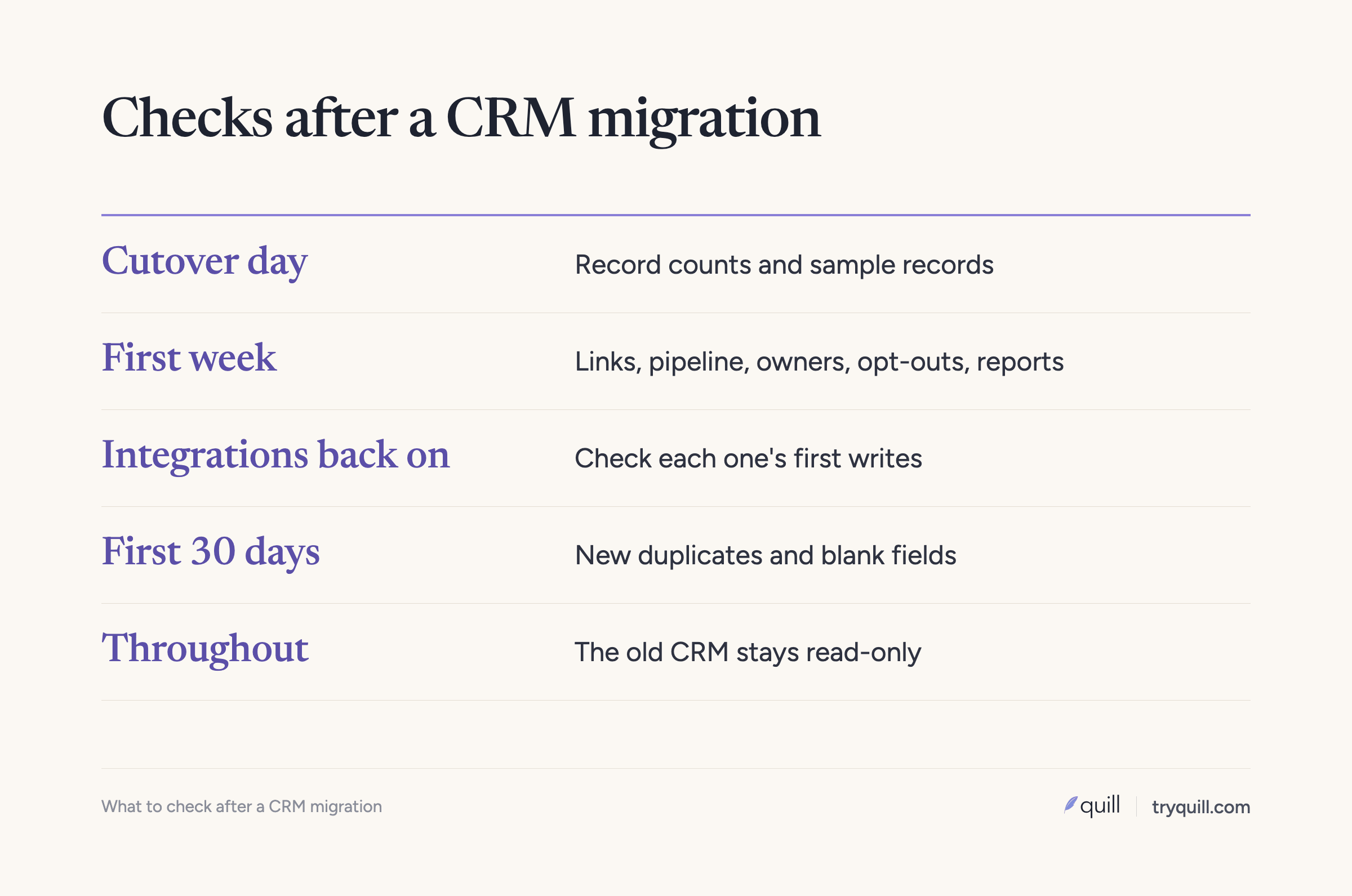
Run the first two checks on cutover day, before you open the new CRM to the whole team. Most of the rest belong in the first week, and the last two continue for a month.
1. Compare record counts by object and by owner
Start with totals per object: accounts or companies, contacts, leads, opportunities or deals, and activities. Then group each object by owner. A total can match while one rep's book is short by 300 accounts and another's is long by 300, which usually means an owner mapping went wrong.
In Salesforce, a summary report grouped by owner works, or a SOQL query such as SELECT OwnerId, COUNT(Id) FROM Account GROUP BY OwnerId. In HubSpot, use a saved view or a report filtered to the migrated records, or open the records from each import in the imports list.
Every difference should have a reason: records you chose not to move, rows that failed, or records merged during the load. In HubSpot, the import's error file lists rows that failed and why.
2. Spot-check sample records field by field
Counts don't tell you whether values arrived intact. Open your sample records in both systems side by side and compare every mapped field. Look for truncated text, dates shifted by a time zone, currency amounts that lost their currency, number fields that became text, multi-select values that collapsed into one, and blank fields that were filled in the source.
Check original dates on purpose. Both Salesforce and HubSpot set a record's created date when it is created, so unless you preserved the originals (in Salesforce by enabling Create Audit Fields and setting Created Date on insert, in HubSpot with a custom "Original create date" property), reports on account age or lead aging will start over at cutover.
3. Check that relationships are intact
Broken links are the most common migration error that counts miss. Check:
- Contacts to accounts. In Salesforce, a cross filter such as "Accounts without Contacts" finds accounts that lost their people. In HubSpot, filter companies where "Number of associated contacts" is 0.
- Opportunities to accounts. In Salesforce, count opportunities with no account (
SELECT COUNT() FROM Opportunity WHERE AccountId = null). In HubSpot, filter companies by "Number of associated deals" and deals by "Number of associated contacts", and compare against the source. - Parent and child accounts. Compare the number of accounts with a parent in each system, then spot-check a few large hierarchies.
- Activities to records. Calls, emails, meetings, and notes should sit on the same account, contact, and deal as before. Check the activity count on your sample records in both systems.
4. Reconcile pipeline totals and open opportunity amounts
Compare open pipeline by stage, owner, and close quarter against the snapshot you took. Sales leadership will notice a pipeline difference before anything else, so find it first. Common causes are stage mapping errors, deals that landed in the wrong pipeline, amounts converted in the wrong currency, and closed deals mapped to an open stage. Match closed-won totals by quarter too, since finance will compare them against bookings.
5. Look for duplicates created by the load or by integrations
Duplicates appear after a migration in two ways. The load creates them when a matching key was missing, for example a HubSpot company without a domain, or a batch that was rerun without an ID to match on. Integrations create them after you reconnect them, when a tool can't find the existing record and makes a new one.
Run duplicate checks on the new system right away. In Salesforce, duplicate jobs scan accounts, contacts, and leads with a matching rule, in Performance and Unlimited editions; in other editions, use reports or a third-party tool. In HubSpot, the duplicates tool under Data Management > Data Quality lists likely duplicate contacts and companies, and reviewing individual pairs needs a Professional or Enterprise subscription.
Pay the most attention to duplicates of customer accounts. A duplicate of a prospect wastes some rep time. A prospect copy of a paying customer can put that customer into an outbound sequence.
6. Check required fields and picklist values
List the fields that your process depends on, such as industry, segment, lead source, and stage, and measure how often each one is blank in the new system compared with the source. Then check picklists for values that aren't in the agreed list. In Salesforce, the import wizards accept a value that isn't in an unrestricted picklist's list, so a typo in the mapping can quietly become a new value. Validation rules and required fields that you turned off for the load should be turned back on once the data passes these checks.
7. Confirm owners and territories
Every record should have an active owner, and ownership should follow the rules you agreed on before the move. Look for records owned by an integration user or the admin who ran the load, records owned by people who have left, and accounts whose owner doesn't match their territory. If territory or assignment rules run in the new CRM, check a sample of accounts against the rules.
8. Confirm opt-outs and consent carried over
Anyone who unsubscribed or opted out in the old system must still be opted out. Compare counts of opted-out contacts in both systems, then spot-check a few. In Salesforce, check the Email Opt Out field on contacts and leads. In HubSpot, check "Unsubscribed from all email" and subscription types, and if you imported an opt-out list, confirm it was applied. Also check marketing contact status in HubSpot, which is separate from subscription status. If you store consent records or lawful basis fields, confirm those moved too. This is general information, not legal advice; check with your counsel.
9. Rebuild reports and dashboards and check that they match
Reports and dashboards don't move between different CRMs, so they are rebuilt, and a rebuilt report can use a slightly different filter. Pick the ten or so reports that leadership, finance, and sales managers actually use. Run the old and new versions for the same period and compare the numbers line by line. Differences usually come from a field that maps differently, a date that reset, or a filter on a value that changed during mapping.
10. Check that integrations write to the right records
Reconnect integrations one at a time, and after each one, look at the records it touched in the first day. Check that it updated existing records instead of creating new ones, that it matched on the right field, and that it wrote to fields that still exist. Integrations that stored old record IDs, such as billing, marketing automation, or a data warehouse, need the new IDs from your crosswalk.
In HubSpot, check whether automatic company creation from contact email domains is on. HubSpot's own documentation doesn't recommend it alongside the Salesforce integration because it can create duplicate companies.
11. Keep the source system read-only
Don't shut the old system down on cutover day. Remove edit access for users, turn off its integrations and automation so nothing keeps writing to it, and keep read access for the people running these checks. Decide in advance how long you will keep it, and export a full backup before you retire it.
How to monitor CRM data for the first 30 days after cutover
The first month after cutover is when a clean migration starts to decay. Reps who can't find a record create a new one, integrations write into a system they haven't seen before, and fields that were filled during the load stop being maintained.
Run these checks daily for the first two weeks and weekly after that:
- New duplicates, counted by the source that created them. If most come from one integration or one import, fix that source.
- Blank required fields on records created after cutover, by owner and by source.
- Records without an owner, account, or contact, created after cutover.
- Pipeline and count drift against your cutover snapshot, adjusted for real new business.
Counting new duplicates by the source that created them, such as an integration, an import, or a person, turns a rising count into a list of things to fix. For more on the matching rules that cause duplicates in a HubSpot move, see Salesforce to HubSpot migration: how to avoid duplicate companies and contacts. If you are still deciding what to move, switching CRM systems covers the decisions to make first.
How Quill helps
Quill's agents clean, deduplicate, and match records before, during, and after a migration. After cutover, they compare the new CRM against the source by object and owner, find records that lost their account, contact, or owner, and catch duplicates as the load and your integrations create them, including matches across the two systems. Every proposed change comes with the evidence behind it, and a person approves it before anything is written. See CRM Migration or Merger for how it works, CRM Hygiene for keeping the new CRM clean after the first month, or book 15 minutes.
Frequently asked questions
What should you check after a CRM migration?
Check record counts by object and owner, sample records field by field, relationships between contacts, accounts, deals, and activities, and pipeline totals against the source. Then check for duplicates, blank required fields, stray picklist values, owners, opt-outs, reports, and integrations. Keep checking for new duplicates and blank fields for the first 30 days.
How long should you keep the old CRM after cutover?
Keep it read-only for at least a few weeks, and longer if finance or legal may need to look up historical records. Decide the date before cutover, export a full backup, and only then retire it. Make sure its integrations and automation are off so nothing keeps writing to it.
How do you validate data after a CRM migration without checking every record?
Use counts and totals for completeness and a sample for accuracy. Compare counts by object and owner and pipeline totals by stage for every record, then compare 50 to 100 chosen records field by field, including the hardest cases. If you saved source IDs on every record, you can also compare fields in bulk by joining exports from both systems on that ID.
Why do duplicates appear after a CRM migration?
Some come from the load itself, when records had no matching key such as a domain or email. Most later ones come from integrations and people: tools that create a new record when they can't find the existing one, and reps who create an account they couldn't find. Count new duplicates by source to find which one to fix.