

The short answer: A Salesforce to HubSpot migration creates duplicates because HubSpot matches contacts on email and companies on domain, and a lot of Salesforce data doesn't match cleanly on either. Records with no email or domain come in as new records, leads and contacts for the same person collapse or split, and accounts that share a domain or have messy websites turn into extra companies. To avoid it, deduplicate in Salesforce first, decide how leads, contacts, and accounts map, fix domains, keep the Salesforce ID on every HubSpot record, and test a small batch before loading the rest.
This post covers the duplicate problem specifically. For the full list of things to clean before any CRM move, see how to clean your CRM data before a migration. If you are moving the other way, see HubSpot to Salesforce migration.
Why do duplicates appear when you migrate Salesforce to HubSpot?
HubSpot decides whether an incoming record already exists by looking at a few fields, and the rules differ depending on how the record arrives.
- File imports. HubSpot deduplicates contacts by the Email property and companies by the primary Company domain name. A row that matches an existing record updates it instead of creating a new one.
- The HubSpot-Salesforce integration. It identifies Salesforce leads and contacts by email address. Companies are matched either by the Salesforce Account ID of a previously synced contact or by an exact match on the deduplication field you configure, such as domain. HubSpot's documentation says the values must match exactly, so partial or similar values don't count.
- The API and third-party sync apps. Companies created through the API are not deduplicated by domain at all, and HubSpot says this includes installed third-party sync apps.
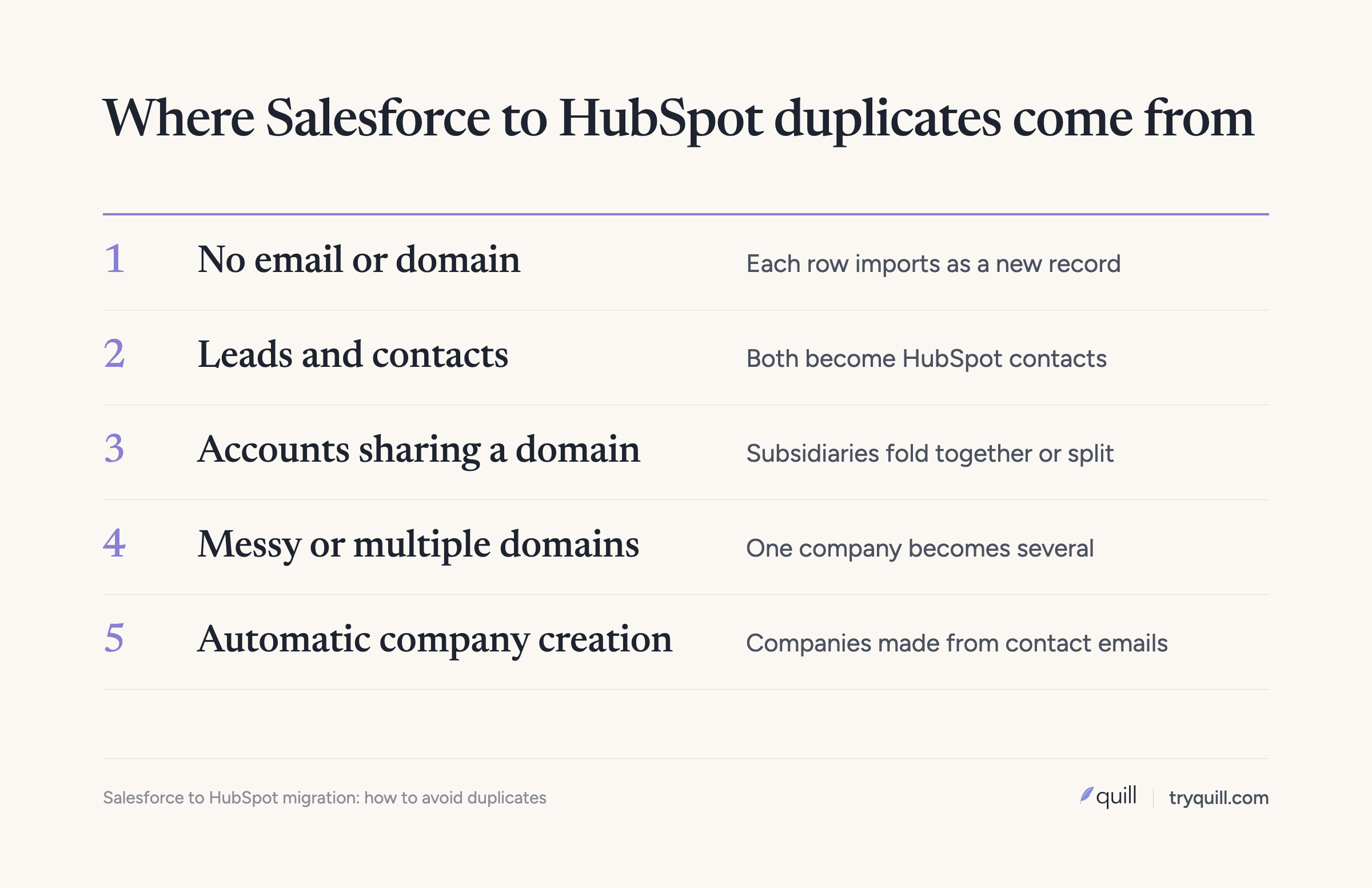
Every Salesforce record that doesn't fit one of those rules cleanly is a possible duplicate. These are the patterns we see most often.
Records without an email or domain
If an imported contact has no email and you don't include another unique identifier, HubSpot imports each row as a new contact. The same is true for companies without a domain. Salesforce orgs often have plenty of both: contacts entered from business cards or events with only a name and phone number, and accounts created by reps who never filled in the website. Each of those becomes a new HubSpot record, even if the same person or company is already there.
Leads and contacts both become HubSpot contacts
Salesforce keeps leads and contacts as separate objects, and the same person is often in both: a lead from a webinar that was never converted, and a contact on the account a rep works. HubSpot stores every person as a contact, and both Salesforce leads and contacts map to HubSpot contacts. If the two records share an email, they land on one HubSpot contact, and you need to decide which record's values win. If they have different emails, for example a personal address on the lead and a work address on the contact, HubSpot treats them as two people.
The integration adds a wrinkle. When several Salesforce leads or contacts share an email, HubSpot syncs with the first record Salesforce returns, and after that with whichever record was most recently updated in Salesforce. HubSpot notes that this can cause your contacts to be overwritten repeatedly. Its advice is to merge the duplicates in Salesforce.
Person accounts
If your org uses person accounts, each one combines account fields and contact fields into a single record for an individual customer. HubSpot has no equivalent. HubSpot's Smart Transfer tool maps Salesforce person accounts to HubSpot contacts, and other methods need a deliberate choice. If a person account and a business contact describe the same person, you can end up with two contacts, or with a company record for someone who is an individual.
Several accounts share one domain
Salesforce happily holds several accounts with the same website: a parent and its subsidiaries, regional entities, or separate business units you sell to on separate contracts. A domain match treats all of them as one company, so an import can fold them together, while the integration, which pairs records by account ID or your chosen field, can bring them over as separate companies with the same domain. The opposite also happens. One company can have several domains after a rebrand or on country sites, and each domain becomes its own HubSpot company.
This has a direct cost. When a customer's record sits under a slightly different domain, reps searching for it don't find it, and an SDR can end up prospecting an account that already pays you.
Automatic company creation from email domains
HubSpot can create a company from each contact's email domain and associate the two. During a migration this setting works against you: contacts arrive, companies get created from their email domains, and then your real Salesforce accounts arrive as more companies. HubSpot's own documentation says that if you've turned on the Salesforce integration, turning on automatic association is not recommended because it can result in duplicate company records. When several companies share a domain, HubSpot also associates contacts with only one of them, and you can't choose which.
Salesforce to HubSpot migration checklist for avoiding duplicates
Most of the effort belongs in the first four steps, before any data moves.
1. Deduplicate in Salesforce first
Merge duplicate accounts, contacts, and leads in Salesforce before anything moves. Salesforce still has the full context there: related opportunities, activity, and the reps who know the accounts. HubSpot recommends the same thing before using the integration. Include cross-object duplicates, such as unconverted leads for people who are already contacts. Long-dead leads and bounced contacts are easier to archive than to deduplicate.
2. Decide how leads, contacts, and person accounts map
Choose how each Salesforce object becomes a HubSpot contact. A common approach is to bring over contacts and person accounts, and only the leads that are open or recently active. Where a lead and a contact are the same person, decide which record's values win, and keep a property that records where each HubSpot contact came from, such as "Salesforce source object: lead" or "contact". Survivorship rules covers how to decide which values win.
3. Decide how accounts map to companies
Decide how subsidiaries, regional entities, and business units should look in HubSpot before you touch domains. If they should stay separate companies, you can't rely on domain matching alone, so plan to match on the Salesforce Account ID instead and give each child a parent company association in HubSpot. If they should become one company, merge them in Salesforce first so the history lands in one place.
4. Fix domains
Standardize the website on every Salesforce account to the root domain. HubSpot's guidance is to use only the primary root domain, such as example.com, without "http://", "https://", "www.", page paths, or a trailing slash. Then look for accounts with no website and fill them in where you can, from contact email domains or a lookup. Check for accounts whose domains redirect to the same site. One team we work with found that most of the domain mismatches in their data were the same company behind a redirect, and a simple redirect check sorted them. For companies with several real domains, pick the primary and plan to add the others as secondary domains in HubSpot.
5. Keep the Salesforce ID on every HubSpot record
Create a custom property for the Salesforce ID on HubSpot contacts, companies, and deals, set it to require unique values, and fill it on every record you load. HubSpot's import can deduplicate on a custom unique ID property as well as on email and domain, so a rerun of a failed batch updates the records you already loaded instead of creating copies. The ID also connects deals and activities to the right records and lets you reconcile counts afterward. If you use the integration, HubSpot also keeps the Salesforce Lead ID and Salesforce Contact ID on each synced contact, which tells you which Salesforce record a contact is paired with.
6. Choose how you will migrate Salesforce to HubSpot
HubSpot's current documentation describes three routes, and they match records differently.
- HubSpot Smart Transfer. HubSpot's tool for moving data from other apps, including Salesforce. It audits your Salesforce data, sets up properties and pipelines, syncs records with HubSpot data sync, and runs one-time transfers for things like attachments. It maps leads, contacts, and person accounts to HubSpot contacts, accounts to companies, and opportunities to deals. It doesn't transfer custom objects, and custom field mappings need a Data Hub subscription. Data sync matches contacts on email and companies on name or domain by default, and it lets you pick a text field as the matching identifier instead.
- The HubSpot-Salesforce integration. Built to keep both systems in sync over time, and it needs a HubSpot Professional or Enterprise subscription. It matches contacts on email and companies by account ID or your configured field. If you use it for a one-time move, plan when you will disconnect it, and configure the company deduplication field before you turn on company sync, because the deduplication logic only applies to companies and accounts created after the sync is turned on.
- Exports and file imports, done by your team or a migration partner. This gives you the most control over matching, because you choose the identifiers yourself.
Whichever route you pick, confirm how it matches companies before you run it. Anything that creates companies through the API skips domain deduplication. Switching CRM systems covers the other decisions that shape the migration plan.
7. Run a test batch
Load a small, deliberately awkward sample first: accounts that share a domain, contacts without email, a person account, a lead and contact for the same person, and a parent with subsidiaries. Check what HubSpot did with each one. If automatic company creation is on, you will see it here, so turn it off before the full load. Load companies first, then contacts, then deals and activities, so every record has something to associate with.
8. Check for duplicates after the load
Compare record counts against Salesforce by object and by source. Then look for companies with the same domain or near-identical names, contacts with the same name at the same company, and contacts with no company association. Use the Salesforce ID property to trace each one back to its source. Keep checking for a few weeks after cutover. What to check after a CRM migration has the full post-cutover list.
How Quill helps
Quill's agents clean, deduplicate, and match your Salesforce records before, during, and after a move to HubSpot. Before the move, they merge duplicate accounts, contacts, and leads in Salesforce, fix and standardize domains, and flag records with no email or website. During it, they match Salesforce records against anything already in HubSpot using names, every known domain, contact emails, addresses, and shared contacts, so the load updates the right record. After cutover, they keep catching new duplicates. Every proposed change comes with its evidence, and a person approves it before anything is written. See CRM Migration or Merger, or book 15 minutes.
Frequently asked questions
Does HubSpot deduplicate records when you migrate from Salesforce?
Partly. File imports deduplicate contacts by email and companies by primary domain, and the Salesforce integration matches contacts by email and companies by account ID or a field you choose. Records with no email or domain, and companies created through the API or sync apps, aren't deduplicated by domain, so you need to match those yourself.
Why does my Salesforce to HubSpot migration create duplicate companies?
Usually because of domains. Accounts with missing, inconsistent, or multiple domains don't match cleanly, and automatic company creation can make companies from contact email domains before your accounts arrive. HubSpot recommends against automatic association when the Salesforce integration is on, so turn it off and fix domains in Salesforce before you move.
What happens to Salesforce leads when you migrate to HubSpot?
They become HubSpot contacts, just like Salesforce contacts, because HubSpot stores every person as a contact. A lead and a contact with the same email end up as one HubSpot contact, and ones with different emails end up as two. Decide which leads to bring over and which values win before the load.
Should I keep the Salesforce ID after migrating to HubSpot?
Yes. Store it in a custom property that requires unique values on every contact, company, and deal. It lets reruns update records instead of duplicating them, connects deals and activities to the right records, and lets you trace any duplicate back to its source.
What is the best way to migrate Salesforce to HubSpot?
It depends on how much control you need over matching. HubSpot Smart Transfer and the HubSpot-Salesforce integration are the built-in routes, and file imports or a migration partner give you the most control. Whichever you choose, the duplicate risk comes from the data, so the cleanup in Salesforce matters more than the tool.