

The short answer: HubSpot has no built-in way to merge two portals, so merging means migrating one portal's data into the other, with the API, imports, or a migration app. Pick the destination portal, map properties, pipelines, and owners, deduplicate each portal, match the companies and contacts that exist in both, and decide which values win. Then move records in order with the source record ID saved on each one, carry over opt-outs, rebuild workflows and forms, and check each step. Some history, such as marketing email and web analytics, does not move.
This post walks through the steps and the parts that most often go wrong. It is the HubSpot-specific version of the process in how to consolidate CRMs across a private equity roll-up.
First decide whether to merge at all
Sometimes the right answer after an acquisition is to keep two portals. If the acquired company will keep its own brand, sales team, and marketing, and especially if it might be sold separately, a full merge can be more disruption than it's worth.
HubSpot offers a middle option for this case. Multi-account management lets a primary Enterprise account connect other accounts on Professional or Enterprise plans, copy marketing emails, lists, and forms between them, and mirror data so reps in one account can see information about contacts in another. It has limits: all accounts must host data in the same location, the primary account can connect up to 29 others, and it doesn't combine the records themselves.
If the teams will sell together, share customers, or report one pipeline, you will want one portal. The rest of this post assumes that.
What moves between portals, and what doesn't
| Usually moves (API, import, or migration app) | Usually doesn't move, or needs rebuilding |
|---|---|
| Contacts, companies, deals, tickets, custom objects | Marketing email send and engagement history |
| Associations between records | Contact web traffic and page view history |
| Notes, calls, meetings, tasks, logged one-to-one emails | Form submission history and lifecycle stage history |
| Custom properties, pipelines, products, line items | Landing pages, templates, dashboards, reports |
| Owner assignments (once users exist in the destination) | Workflows and forms, unless your tool copies them |
| Files and attachments | Tracking code, domains, connected inboxes, integrations |
Exactly what moves depends on your tool, so check its documentation. Two things are true regardless:
- Record IDs change. Every migrated record gets a new ID in the destination portal. Anything outside HubSpot that stored the old ID, such as billing, the data warehouse, or finance spreadsheets, needs to be updated.
- System dates reset. HubSpot sets the create date when a record is created in the destination, and for contacts and companies it can't be backdated through import. Keep the original date in a custom property such as "Original create date" and point reports at it.
How to merge two HubSpot portals, step by step
1. Choose the destination and audit both portals
The destination is usually the platform or acquiring company's portal. Audit both: properties in use, pipelines and stages, lifecycle stage definitions, custom objects, users, teams, workflows, forms, integrations, and record counts by object. Note properties that exist in both portals with different meanings.
2. Map properties, pipelines, and owners
For each source property, decide whether it maps to an existing destination property, becomes a new one, or is dropped. Map every deal stage to a destination stage and every picklist value to a destination value. Add source users who are staying to the destination portal before you migrate, so owner assignments land on real users, and reassign records owned by people who have left.
3. Deduplicate each portal on its own
Clean duplicates inside each portal before comparing them. Otherwise two copies of a company in one portal and one in the other become a cluster of three, and every decision gets harder.
Merge carefully. In HubSpot, all associations and activity from both records end up on the merged record, and merges can't be undone. One team we've worked with merged two contacts who shared a common name, then had to separate them, and found their activity crossed between records, some of it visible to a channel partner in their partner portal. Review merges of contacts with common names before approving them.
4. Match companies and contacts across the two portals
HubSpot deduplicates contacts by email address and companies by primary company domain when you import a file, so an imported record with a matching email or domain updates the existing record instead of creating a new one. That handles the easy cases. It misses a lot:
- Companies created through the API or a sync app are not deduplicated by domain. If your migration tool uses the API, check how it matches companies.
- A company with different domains in each portal, after a rebrand or on a regional site, won't match on domain. The same domain problems cause most duplicates when moving from Salesforce to HubSpot.
- Contacts with different email addresses in each portal, such as a personal and a work address, won't match on email.
- If several destination records share the same value, the import errors on that row.
Match the rest before loading. Normalize company names, compare every domain you have for each company, including contact email domains, and look at addresses and shared contacts. Review uncertain matches, and write the destination record ID for each matched source record into your file, so the load updates the right record instead of guessing. How to find shared customers after an acquisition covers the matching in more depth.
5. Decide which values win for matched records
When a source record updates an existing destination record, the import overwrites the destination's values for the columns you include. Decide field by field which side should win before you load. HubSpot's import has a "Don't overwrite" option per property, which only fills properties that have never had a value, useful when the destination is the trusted side. Ownership needs its own rule, agreed with sales leadership. Survivorship rules covers how to set these.
6. Save the source record ID on every record
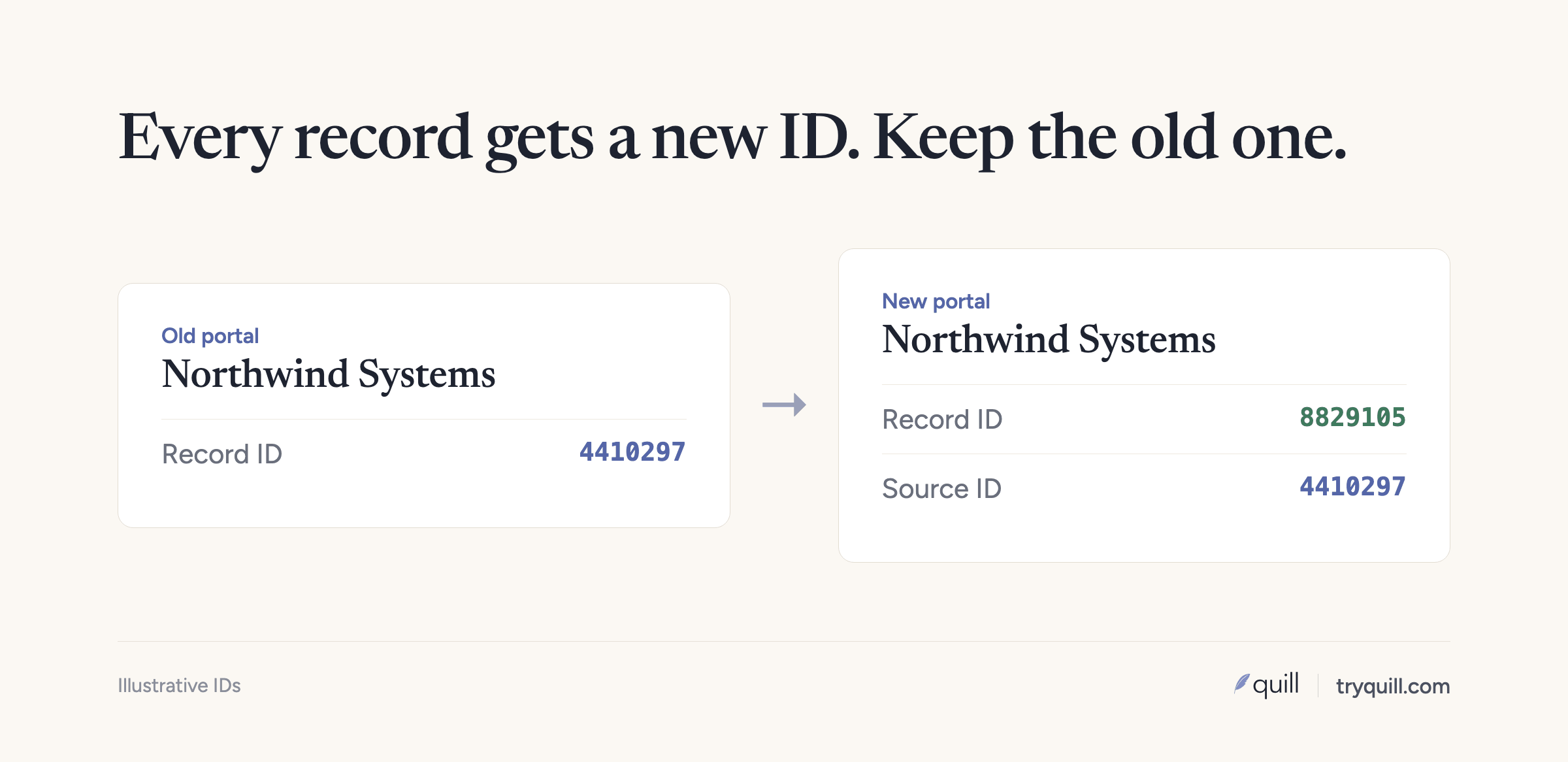
Create a custom property such as "Source portal record ID" on each object and fill it during the load. Build a crosswalk of source ID to destination ID. You will use it to attach associations and activities, to rerun a failed batch without creating duplicates, and to repoint billing and other systems at the new IDs.
7. Carry over opt-outs and subscription status
Contacts who unsubscribed in the source portal must stay unsubscribed. HubSpot lets you import an opt-out list, which disqualifies those addresses from future marketing email and sequences, and addresses that aren't already contacts aren't created as contacts. Subscription status and marketing contact status are separate properties, so handle both deliberately, and set marketing contact status in the destination on purpose rather than by default.
8. Load in order and check each batch
Move companies first, then contacts, then deals and tickets, then associations, then activities, so every record has something to attach to. After each batch, compare counts against the source, spot-check associations, and look for new duplicates. A small test batch first will catch most mapping mistakes.
9. Rebuild what doesn't move, then switch over
Recreate or copy workflows, forms, lists, and reports. Reconnect integrations, inboxes, and calling tools to the destination portal. Update the tracking code on the acquired company's websites. Freeze writes to the source portal on cutover day and keep it read-only until you're confident nothing is missing.
After cutover, watch your integrations
The first weeks after a portal merge are when duplicates come back fastest. Reps from the acquired team create companies they can't find, and every integration you reconnect starts writing into a portal it has never seen. One RevOps team we work with found that a sales intelligence integration was one of their main sources of new duplicates, and one they couldn't turn off because outbound depended on it.
Before reconnecting each integration, check how it matches existing records and whether it creates companies through the API, which skips domain deduplication. Then run duplicate checks daily for the first month, and keep them running.
How Quill helps
Quill's agents read both HubSpot portals at once, deduplicate each one, and match companies and contacts across them using names, every known domain, contact emails, addresses, and shared contacts, with evidence behind each proposed match. They apply your survivorship rules, and nothing is written until a person approves it. After cutover, the same agents keep catching new duplicates as integrations and reps create them. See CRM Migration or Merger and CRM Hygiene. If you are a private equity platform bringing several add-ons' portals together, see Quill for private equity, or book 15 minutes.
Frequently asked questions
Can you merge two HubSpot portals?
Not natively. HubSpot has no feature that combines two portals into one, so you move data from one into the other using imports, the API, or a migration app from the HubSpot App Marketplace. If you want to keep both portals, multi-account management lets connected accounts share some assets and mirror data.
Will record IDs stay the same when moving to another HubSpot portal?
No. Records get new IDs in the destination portal. Save the source ID in a custom property on each record and keep a crosswalk, so you can update billing, the data warehouse, and anything else that referenced the old IDs.
Does HubSpot prevent duplicates when migrating between portals?
Partly. File imports deduplicate contacts by email and companies by primary domain. Companies created through the API or sync apps aren't deduplicated by domain, and records with different emails or domains in each portal won't match automatically, so match those before loading.
What data is lost when merging HubSpot portals?
Marketing email engagement history, web traffic history, form submission history, and lifecycle stage history usually don't move. Workflows, forms, reports, and dashboards need rebuilding or copying. Contact and company create dates reset, so keep the originals in a custom property.
How long does it take to merge two HubSpot portals?
It depends mostly on how much matching and cleanup the data needs, not how many records there are. Two clean portals with little overlap can merge in a few weeks. Portals with heavy duplication, many customizations, or a large shared customer base take longer, which is why deduplication and matching should start early.