

The short answer: Treat every AI tool that writes to your CRM like a new integration user: give it the narrowest access it needs, make the platform enforce your data rules on its writes, route risky changes (stages, amounts, owners, merges, deletes) to a person, and log every change it makes. Salesforce and HubSpot enforce user permissions on AI connections, but they don't know your RevOps rules, so the rules have to live somewhere the AI can't skip.
How AI tools break CRM data
Most CRM damage from AI tools comes from a steady stream of small writes that each look reasonable and add up to data nobody trusts. The common ones:
- Pipeline changes that skip your process. A rep asks an assistant to move a deal to Negotiation. The stage changes, but the required fields, the approval, and the next step your process expects are all missing.
- Overwritten good values. An agent that summarizes a call overwrites a correct renewal date with a date someone mentioned in passing, and the renewal workflows that depend on that field now fire at the wrong time.
- New duplicates. An assistant asked to add a contact creates it without searching carefully, or creates a new company instead of finding the one with a slightly different name.
- Bad merges. A cleanup run merges two records that only look alike, and the activity from one person or company ends up on the other.
- Bulk changes nobody reviewed. Someone asks the assistant to "clean up industry values" and it rewrites a few thousand records in one conversation.
We see this with design partners who use Claude directly on Salesforce and HubSpot. At one company, reps were moving deal stages in HubSpot through Claude with none of the checks the pipeline normally had. Nobody set out to bypass the process. The chat window was faster.
Why the built-in controls are not enough on their own
Both CRMs now ship official MCP servers that assistants like Claude and ChatGPT connect to, and both run every call with the connected user's permissions. That stops an assistant from seeing or editing more than the user could in the UI. For setup details, see connecting Claude or ChatGPT to Salesforce or HubSpot.
User permissions answer "is this person allowed to edit this field?" They don't answer "is this edit correct?", "does this stage change meet our exit criteria?", or "are these two contacts actually the same person?" A rep is allowed to change a deal stage. Your process says they should only do it with a close plan attached. The permission model has no way to express that.
Platform validation helps, but coverage is uneven:
- Salesforce validation rules run on every save, including API writes from integrations and MCP tools, unless your org has a bypass built in. Duplicate rules also run on API saves. A rule set to Allow with an alert rejects an API save as a duplicate unless the calling tool sends Salesforce's duplicate rule header with allowSave set to true, which many integrations do. A rule set to Block stops the save either way, so check which rules are set to Block and what header each tool sends.
- HubSpot property validation rules apply to edits in the CRM and to imports. HubSpot's documentation says they are not enforced for workflows, chatflows, meeting scheduling pages, or legacy forms. Starting with the 2026-09 API version, HubSpot enforces conditional required properties and required-on-create settings on API writes. Before that version, the API ignored those admin settings. Check which API version your tools use.
- Merges are the hardest to reverse. HubSpot says merged records cannot be unmerged, and the merged record usually gets a new record ID. In Salesforce, the losing records go to the Recycle Bin for 15 days by default, but restoring one brings back its field values, not the related records that already moved to the surviving record.
Guardrails to put on AI writes, step by step
One RevOps lead we work with described the problem in three parts: stop the big bad uploads at the door, apply rules to the everyday changes, and clean up what still gets through. The steps below cover the last two; for bulk uploads, see HubSpot import problems and how to fix them.
1. Inventory every AI tool that can write
List each assistant, agent, and internal AI tool connected to the CRM, whose credentials it uses, and what it can write. Include personal connections: an individual rep who connected Claude to HubSpot with their own login counts. In Salesforce, check which hosted MCP servers are active and which External Client Apps are authorized. In HubSpot, check connected apps.
2. Narrow the access at the platform
Use the narrowest server or scope that does the job. Salesforce's hosted MCP servers come in read-only, create-and-update, delete-only, and full-access versions, so most teams can start with read only and add create-and-update for specific users. For agents that run without a person and connect through the API rather than the hosted MCP servers (which always run as a signed-in user), create a dedicated integration user with a permission set limited to the objects and fields the agent needs. In HubSpot Enterprise, field-level permissions can restrict who can edit sensitive properties.
3. Turn on approvals in the assistant
In Claude, Team and Enterprise owners can set each connector action to always allow, needs approval, or blocked. Start with reads on always allow and writes on needs approval. ChatGPT's developer mode asks for confirmation on write actions by default and lets a user remember an approval for the rest of a conversation, so train people not to do that for CRM tools.
These approvals are useful, but they rely on the person approving to know your rules. A rep approving their own stage change is not a review.
4. Encode your RevOps rules where every write passes through them
Write down the rules your team already applies by hand, then put them in front of AI writes:
- Required fields and exit criteria for each stage change.
- Fields AI may never write (amount, owner, contract dates) or may only fill when blank.
- Search before create: match on email for contacts and on domain and normalized name for companies, including known alternate domains.
- Merge rules: which record survives, which fields win, and when two same-name records must not be merged without a second identifier such as email or company. Our post on survivorship rules covers how to decide which values win.
- Limits on bulk changes: anything over a set number of records in one request goes to review.
Salesforce validation and duplicate rules can enforce some of these. The rest need a policy layer that sits between the AI and the CRM and checks each create, update, and merge before it is written.
5. Route by risk and confidence
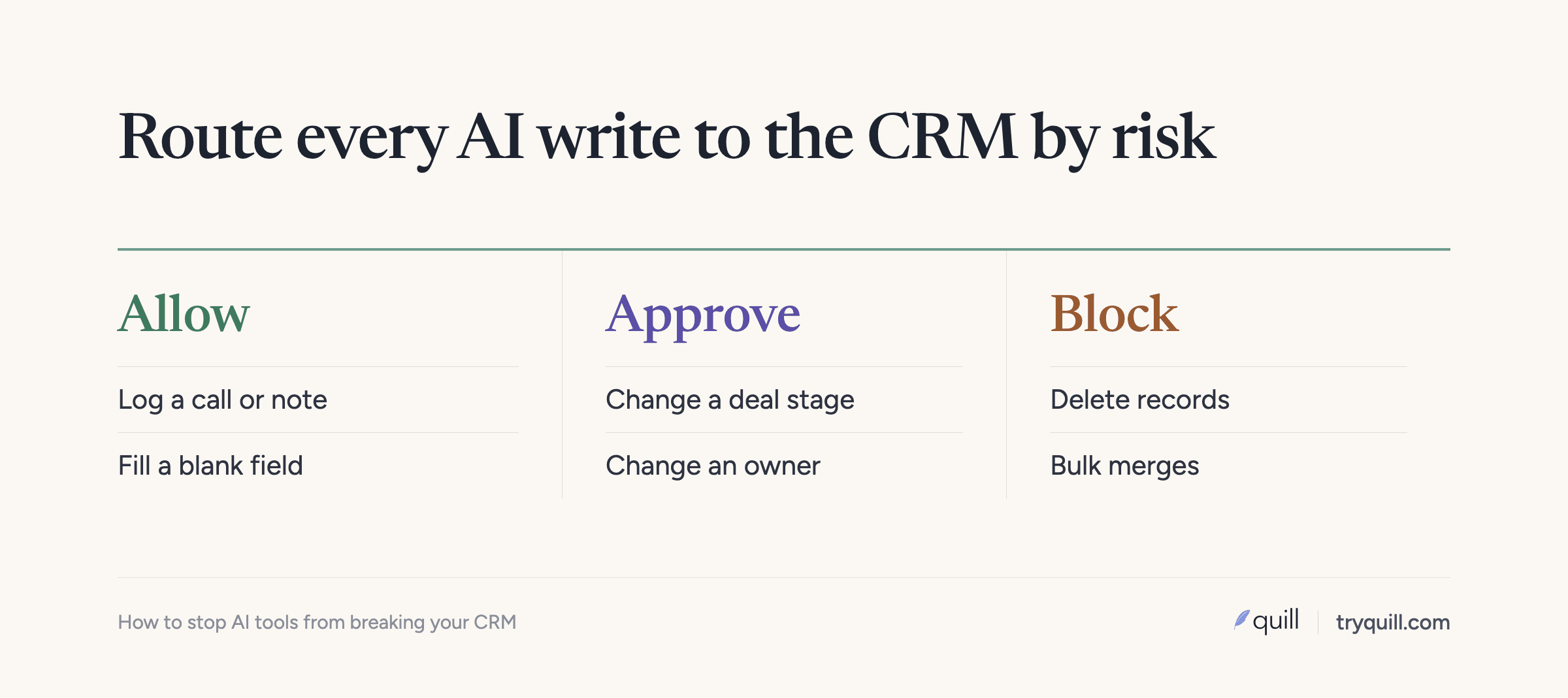
Not every change needs a person. Logging a call note or adding a next step is low risk. Changing an owner, an amount, or a stage, or merging two records, is high risk. Let low-risk, high-confidence writes through, and queue the rest with the evidence behind them so a reviewer can approve in seconds.
Trust grows with evidence. One team started with the least automation possible and reviewed every proposed merge. After a few months of seeing the proposals hold up, they turned on auto-approve for the high-confidence tier and kept a person on the rest.
6. Log every AI change and review it
Turn on Salesforce field history tracking for the fields AI can touch (up to 20 fields per object, kept for 18 to 24 months, or up to 200 fields kept until you delete them with Field Audit Trail). In HubSpot, property history shows the source of each change. Better still, keep your own log of every AI write: the tool, the user, the request, the old value, the new value. Review it weekly at first.
7. Watch for drift after launch
Check the same numbers every week: new duplicates, blank required fields, stage changes missing exit criteria, and records changed by AI tools. A spike usually points to one tool or one team, and it is easier to fix in week one than in month three.
How Quill helps
Our RevOps MCP is an MCP server that sits between Claude, ChatGPT, or Cursor and your Salesforce or HubSpot. Every create, update, and merge an assistant makes passes your RevOps rules before it is written: required fields, protected fields, search before create, merge rules, and bulk limits. Changes that need judgment wait for a person with the evidence attached, and everything is logged. Book 15 minutes and we will walk through it on your rules. For the broader readiness work, see how to get your CRM data ready for AI agents.
Frequently asked questions
Can Claude or ChatGPT change records in Salesforce or HubSpot?
Yes, if the connection allows writes. Salesforce's hosted MCP servers and HubSpot's MCP server both support creating and updating records, limited to what the connected user can already edit. Salesforce also offers a read-only server if you want to prevent writes.
Do Salesforce validation rules apply to AI tools?
Yes. Validation rules run on API saves, so they apply to MCP tools and integrations unless your org has a bypass for that user. Duplicate rules set to Block always stop API writes. Rules set to Allow with an alert stop them too, unless the tool sends the duplicate rule header with allowSave set to true, so check what each tool sends.
Do HubSpot validation rules apply to API writes?
Partly. Property validation rules apply to CRM edits and imports, and HubSpot says they are not enforced for workflows. From the 2026-09 API version, HubSpot enforces conditional required properties and required-on-create settings on API writes, so check which version your tools call.
What AI changes should always need approval?
Stage changes, amounts, owners, merges, deletes, and any bulk change above a set record count. These are hard to reverse and feed forecasting, compensation, and finance. Low-risk writes like notes and next steps can usually go through without review.
How do I undo a bad AI merge?
In HubSpot you can't unmerge; you remove the added email or domain and recreate the second record, then move activities back by hand. In Salesforce, the losing record sits in the Recycle Bin for 15 days, but restoring it doesn't bring back the related records that moved to the survivor, so recovery is manual. That is why merges should be the last thing you let an AI do without review.