

The short answer: In Salesforce, an admin turns on a hosted MCP server in Setup, creates an External Client App, and each user adds the server URL as a custom connector in Claude or as a developer-mode app in ChatGPT. In HubSpot, a Super Admin approves the HubSpot connector and each user connects it from Claude's or ChatGPT's settings. Both respect the connected user's permissions, so what needs your attention is the data: the assistant answers confidently from duplicate, stale, and half-filled records, and once it can write, it changes records as fast as people ask.
Most teams we talk to did not start with a formal AI project. Someone in RevOps, finance, or sales leadership connected an assistant to the CRM, and within weeks several people used it every day. This guide covers setup for both CRMs and both assistants, then the data problems that follow.
How to connect Claude or ChatGPT to Salesforce
Salesforce's hosted MCP servers became generally available in April 2026, and Salesforce hosts them, so there is nothing to run yourself. You need Enterprise Edition or above (Developer Edition also works) and an admin with access to Setup.
Every tool call runs as the user who authorized the connection, with that user's object permissions, field-level security, and sharing rules. If the assistant updates a record, that user's name appears in the audit trail, and if the user couldn't make a change in Salesforce, the assistant can't either.
1. Activate a server in Setup
Go to Setup > API Catalog > MCP Servers. The servers are off by default, and an admin turns on each one separately. The standard SObject servers come in scoped versions:
- SObject Reads (
platform/sobject-reads): read and query only, no changes. - SObject Mutations: create and update, no delete.
- SObject Deletes: delete only.
- SObject All (
platform/sobject-all): full create, read, update, and delete, plus query and search.
Salesforce recommends starting with SObject Reads, because no tool on that server can change a record.
2. Create an External Client App
MCP connections use an External Client App, not a Connected App. In Setup, search Quick Find for External Client App Manager and click New External Client App. Then:
- Enable OAuth and add the callback URL for your assistant. For Claude on the web it is
https://claude.ai/api/mcp/auth_callback. For ChatGPT, copy the one ChatGPT shows when you create the app (step 4). - Add the OAuth scopes
mcp_apiandrefresh_token. - Under Security, select JWT-based access tokens for named users.
- After you save, copy the consumer key from the app's OAuth settings.
The app can take up to 30 minutes to start working. Salesforce recommends one app per assistant, and you can require a permission set so only named users can connect.
3. Add the server in Claude
In Claude, go to Customize > Connectors, click +, and choose Add custom connector. Enter a name and the server URL, which follows the pattern https://api.salesforce.com/platform/mcp/v1/platform/sobject-reads for a production org (sandboxes add /sandbox before the server name, and orgs that require My Domain login use a /d/<your-my-domain>/ form). In Advanced settings, paste the consumer key as the OAuth Client ID, click Add, then Connect.
Custom connectors are available on all Claude plans (free accounts get one). On Team and Enterprise plans, an Owner enables connectors for the organization first, and each person then logs in with their own Salesforce account.
4. Add the server in ChatGPT
ChatGPT connects to custom MCP servers through developer mode, available on Plus, Pro, Business, Enterprise, and Edu accounts on the web. In Business workspaces only admins and owners can turn it on, and Enterprise and Edu admins can grant it to specific people.
With developer mode on, go to Settings > Apps > Create, enter a name and the same server URL, and under Authentication > Advanced settings set the registration method to a user-defined OAuth client and paste the consumer key. Copy ChatGPT's callback URL into your External Client App, then click Create and log in to Salesforce.
How to connect Claude or ChatGPT to HubSpot
HubSpot runs a remote MCP server at mcp.hubspot.com, which became generally available on April 13, 2026. It reads contacts, companies, deals, tickets, leads, activities, and many other objects, and it can create and update records and log notes, calls, and tasks. All actions respect the user's existing HubSpot permissions, and the audit log attributes each change to both the user and the connector.
HubSpot publishes a ready-made connector in both Claude and ChatGPT, available on all HubSpot plans.
1. Approve the connector in HubSpot
A Super Admin approves the connector and chooses which data permissions it can use and who can install it. (Super Admins and users with App Marketplace Access can connect the Claude connector without separate approval.) If you later widen its permissions, each user reconnects.
2. Connect it in Claude
Claude's HubSpot connector requires a paid Claude plan (Pro, Max, Team, or Enterprise). Go to Customize > Connectors (HubSpot's article calls it Settings > Connectors), click Browse, search for HubSpot, and click Connect. Log in, choose the HubSpot account, and select the permissions you want to allow.
3. Connect it in ChatGPT
In ChatGPT, go to Settings > Apps, select HubSpot, and click Connect. Log in, choose the HubSpot account, and select permissions. Developer mode is not needed for HubSpot's own connector.
Things to check before people rely on it
- Sensitive Data. If your HubSpot account has Sensitive Data turned on, activity and conversation data (calls, emails, meetings, notes, and tasks) is blocked from the MCP server, so answers about recent activity will be thin.
- Bulk limits. Both connectors create or update up to 10 records per request.
- Validation rules. HubSpot's articles list which of your rules each connector applies. As of this writing, the Claude article says pipeline stage validations apply and the ChatGPT article says custom validation rules don't, so check the one for your assistant.
- Other clients. For assistants without a HubSpot connector, a developer can create an MCP connector under Development > MCP Connectors in HubSpot and connect any client that supports OAuth with PKCE to
https://mcp.hubspot.com.
Permissions control access, not accuracy
Claude lets you set each connector tool to Always allow, Needs approval, or Blocked, and on Team and Enterprise plans an Owner can set those limits for everyone. ChatGPT's developer mode treats any tool without a read-only annotation as a write and asks for confirmation by default, though a user can remember an approval for the rest of a conversation. HubSpot's write tool also shows proposed changes and asks for confirmation.
Those controls and the CRM permissions answer "can this assistant reach data it shouldn't?" They don't answer "is the data it reads correct?" or "is this change a good one?" Those depend on your records and your process.
What goes wrong when the assistant reads messy records
An assistant connected to the CRM does what a new hire would do on day one: it trusts the records. A new hire gradually learns which accounts to ignore, and the assistant has no way to learn that.
Duplicate accounts split the answer
Ask "what's going on with Acme?" and the assistant searches, finds one of three Acme accounts, and summarizes it. The open renewal might be on the second one and the last six months of meetings on the third. The answer sounds complete and misses most of the story.
Blank and inconsistent fields turn into "unknown" or guesses
If a field is empty, the assistant says it doesn't know or fills the gap from whatever it finds. One team ran a project in Claude to qualify every open deal: economic buyer, decision criteria, competitors. A large share of the answers came back as unknown or partial, because those fields had never been filled in consistently. The team traced the stall to data hygiene.
Inconsistent values cause quieter errors. If industry is stored as "Financial Services," "FinServ," and "Finance," "how much pipeline do we have in financial services?" undercounts unless the assistant catches all three.
Stale records get reported as current
Past close dates, contacts who changed jobs, and owners who left all look current to an assistant. Ask for "deals closing this quarter" and you may get last quarter's slipped deals back. Ask who owns an account and you may get someone who left in the spring.
Wrong associations send the answer to the wrong place
A contact attached to the wrong company, or to two unrelated companies, pulls that company's activity into the wrong summary. A subsidiary that isn't linked to its parent makes account-level answers look smaller than they are.
Errors move downstream into finance and board reporting
We have seen finance teams build reporting in Claude directly on CRM data. Then a duplicate customer or a stale amount doesn't stay in the pipeline view. It shows up in the numbers finance sends to leadership.
What changes once the assistant can write
Reading messy data produces wrong answers. Writing produces wrong data, which every other system then reads. Three patterns come up often.
Stage and field changes skip the usual checks. When reps can update records through a chat window, they will, and a stage change made that way can arrive without the required fields, approval, or next step your pipeline process expects. Which of your rules still apply to these writes depends on how each rule is built, which we cover in how to stop AI tools from breaking your CRM.
Merges are hard to reverse. A cleanup run can merge two contacts who only share a common name, and neither CRM gives you a simple undo, which the guardrails post covers in detail.
Creates add duplicates. An assistant asked to "add this contact" may not search first, or may search on a different spelling. In HubSpot, companies created through the API, including installed third-party sync apps, are not deduplicated by company domain the way manual creates and imports are.
Before you roll it out to the team
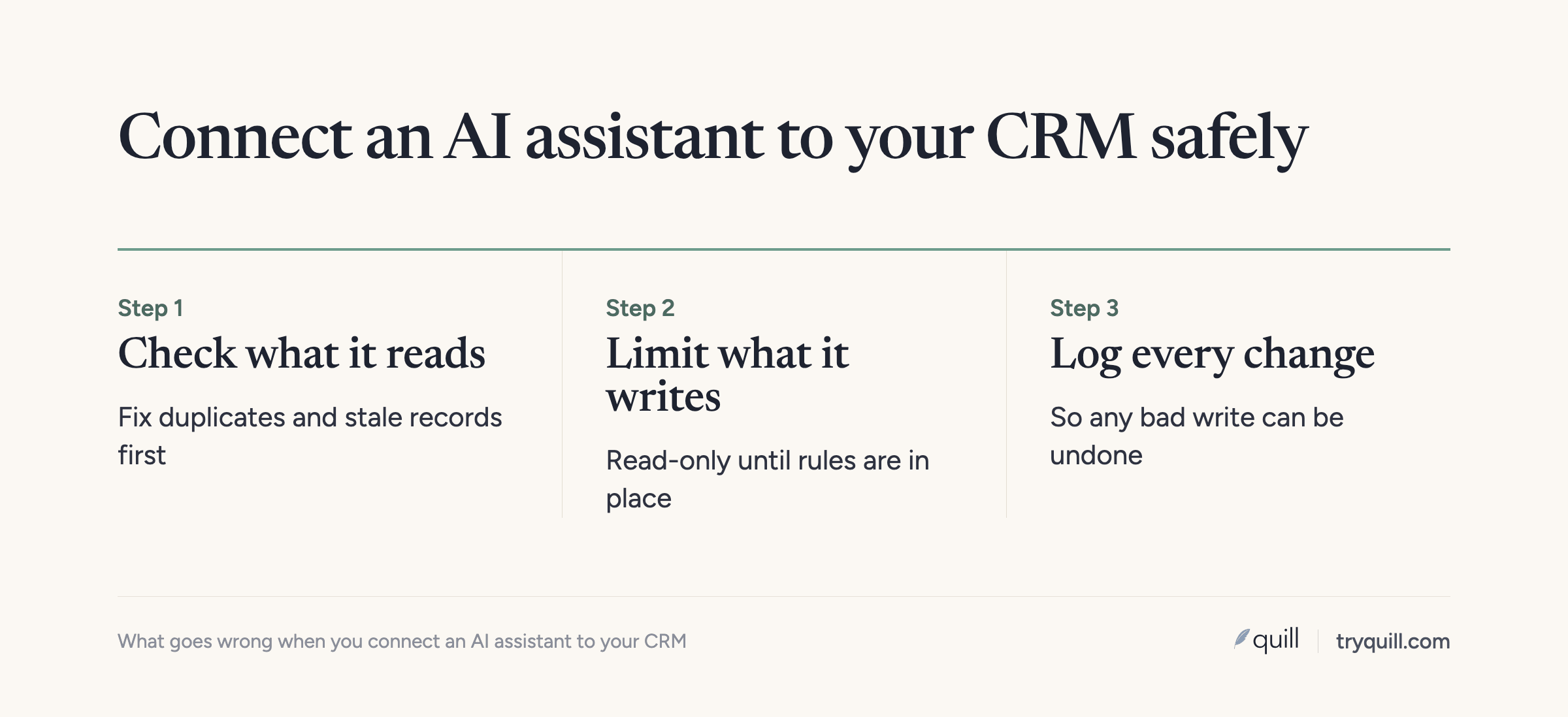
1. Start read only
Use the SObject Reads server in Salesforce, set write tools to Needs approval or Blocked in Claude, and leave write confirmations on in ChatGPT. Collect the wrong answers people report over the first few weeks.
2. Scope the records and fields people actually ask about
List the questions people ask most and the objects and fields each depends on, usually accounts, contacts, open opportunities, owners, and a few qualification fields. This is the same scoping step we describe in how to get your CRM data ready for AI agents.
3. Measure and fix those records
Check duplicates, fill rate, consistency, freshness, and associations on that scope. Fix duplicates and broken associations first, because they cause the most confident wrong answers. How to measure CRM data quality covers the specific checks.
4. Decide which writes are allowed and who approves them
Separate low-risk writes (logging a note, adding a next step) from high-risk ones (stage changes, amounts, owners, merges, deletes). Allow the first and route the second through approval or block them. Enforce it in the CRM too (scoped Salesforce servers, permission sets, HubSpot connector permissions), because people can connect other clients.
5. Keep a record of what the assistant changed
Turn on field history tracking in Salesforce for the fields that matter (up to 20 per object without Field Audit Trail), and use property history and the audit log in HubSpot. When something looks wrong, you want to see who changed it and through which connection.
How Quill helps
Quill builds AI agents that keep CRM data accurate. For teams connecting Claude or ChatGPT, our RevOps MCP sits between the assistant and Salesforce or HubSpot so every create, update, and merge is checked against your RevOps rules before it is written, and changes that need judgment wait for a person. CRM Hygiene finds and fixes the duplicates, blank fields, and stale records the assistant would otherwise read from. Book 15 minutes and tell us which assistant your team is using.
Frequently asked questions
How do I connect Claude to Salesforce?
Activate a hosted MCP server under Setup > API Catalog > MCP Servers, create an External Client App with the mcp_api and refresh_token scopes and Claude's callback URL, then add the server URL as a custom connector in Claude with the consumer key as the OAuth Client ID. Your org needs Enterprise Edition or above, or Developer Edition.
Which Salesforce MCP server should I start with?
Start with SObject Reads, which can query records but has no tools that create, update, or delete them. Move to SObject Mutations when you want creates and updates without deletes, and keep SObject All for the few users who need deletes.
Do I need ChatGPT developer mode to connect HubSpot?
No. HubSpot publishes its own connector in ChatGPT's Apps settings, and a Super Admin approves it in HubSpot. Developer mode is needed for custom MCP servers, such as Salesforce's hosted servers.
Why does Claude give wrong answers about my Salesforce data?
Usually because the records are wrong or split: duplicate accounts, blank or inconsistent fields, stale close dates, or contacts on the wrong company. The assistant repeats what the records say. Fixing the records it reads fixes more than rewriting the prompt.
Should I let Claude or ChatGPT write to my CRM?
Start with read access, then allow low-risk writes like notes and next steps once the data it reads is in good shape. Keep stage changes, amounts, owners, merges, and deletes behind approval, and track field history.