

The short answer: Before a HubSpot to Salesforce migration, deduplicate companies and contacts in HubSpot, decide which HubSpot contacts become Salesforce leads and which become contacts, and map every deal stage, owner, and picklist value to Salesforce. Turn free-text properties into picklists, clean up lifecycle stage and lead status, and save each HubSpot record ID in an external ID field in Salesforce. If HubSpot stays on for marketing, clean both sides before you turn on the HubSpot-Salesforce integration, because the sync will copy any duplicates across.
The usual story is a company that has outgrown HubSpot for sales and moves the sales team to Salesforce, often while marketing stays in HubSpot. This post covers the HubSpot-specific cleanup. For the general process that applies to any CRM, see how to clean your CRM data before a migration. If you are moving the other way, see Salesforce to HubSpot migration.
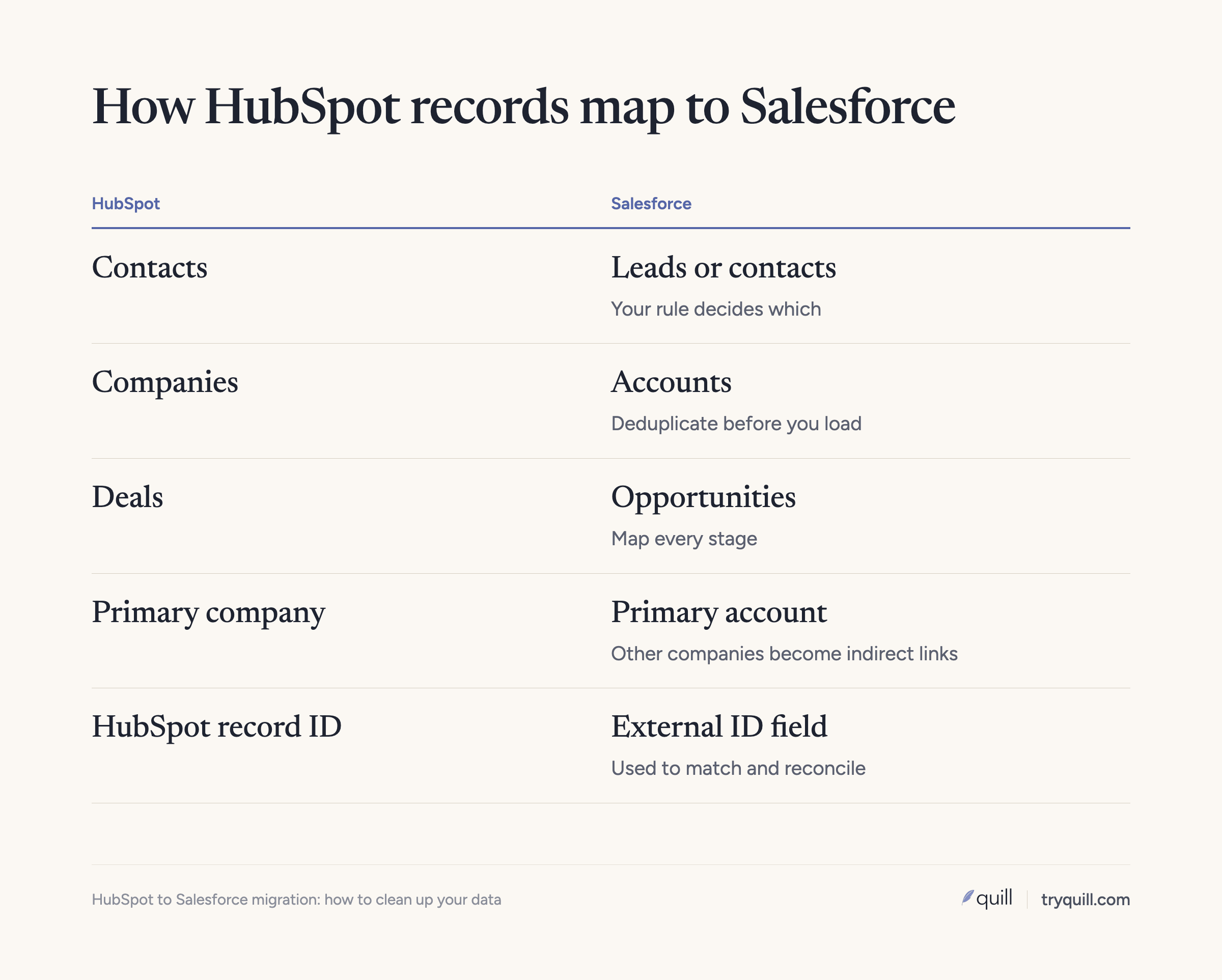
How HubSpot records map to Salesforce objects
HubSpot and Salesforce organize the same customers differently, and most of the cleanup work comes from those differences. HubSpot has one contact object for everyone, from a newsletter subscriber to a customer's CFO, and uses lifecycle stage to say where each person is. Salesforce splits people into leads, which are not yet tied to an account, and contacts, which belong to an account. When a Salesforce lead is qualified and converted, Salesforce turns it into a contact on a new or existing account and can create an opportunity at the same time.
The other objects line up more directly. HubSpot companies become Salesforce accounts, and HubSpot deals become Salesforce opportunities. Associations are where the models differ again. In HubSpot, a contact can be associated with several companies, and one of them is marked as the primary company. In Salesforce, a contact has one account in its Account Name field. If your admin turns on Contacts to Multiple Accounts, that account becomes the contact's primary account and the others are stored as indirect relationships.
HubSpot to Salesforce migration checklist: what to clean before you move
Do these steps in HubSpot, before you export anything. The data is easier to fix where people still recognize it, and every record you clean or leave behind is one less record to map and load.
1. Decide which HubSpot contacts become leads and which become contacts
Write the rule down before mapping starts. A common rule is that contacts associated with a company that has an open deal or is a customer become Salesforce contacts on that account, and everyone else becomes a lead. Whatever rule you pick, apply it to every record and get your sales team to agree to it.
Also decide what not to move at all. Contacts with bounced email, unsubscribed contacts with no sales activity, and leads nobody has touched in years usually belong in an archive, not in the new org.
2. Deduplicate companies and contacts in HubSpot first
HubSpot won't let two contacts share an email address, so exact email duplicates are rare, but the same person with a work and a personal address is common. Companies are messier. Look for companies with the same name and different domains, companies with no domain, and subsidiaries entered as separate companies with no parent. Merge or link them in HubSpot before the move, because Salesforce's duplicate rules will not catch everything during a bulk load (more on that below).
3. Map deals to opportunities, stage by stage
List every HubSpot deal pipeline and every stage in it, and map each stage to a Salesforce opportunity stage. If you have several HubSpot pipelines, decide whether they become one Salesforce sales process or several, which in Salesforce usually means separate opportunity record types. Check closed-won and closed-lost stages carefully, because reports and forecasts depend on them. Then decide which closed deals to move. Many teams move all closed-won deals for revenue history and only recent closed-lost ones.
4. Sort out contacts that belong to more than one company
Export contacts with all their company associations and find the ones associated with more than one company. For each, decide which company becomes the Salesforce primary account. HubSpot's primary company is a good default, but check it, because the first company associated with a contact becomes primary by default, which is not always the right one.
If you enable Contacts to Multiple Accounts, you can load the other companies as indirect relationships. Salesforce only supports importing those relationships with Data Loader, not the Data Import Wizard. If you don't enable it, the secondary associations won't have anywhere to go, so decide whether to record them another way or let them go.
5. Turn free-text properties into picklists
HubSpot portals that grew quickly tend to have single-line text properties for things like industry, region, competitor, or lead source, with dozens of spellings of the same value. Salesforce reports and automation work much better on picklists. For each of these properties, list the distinct values, group them into a short set of standard values, and update the HubSpot records to match before export. Then create the field in Salesforce as a picklist with exactly those values.
6. Clean up lifecycle stage and lead status
Both properties drift over time. HubSpot's default lifecycle stage only moves forward when HubSpot tools set it, so a churned customer can still read "Customer" and a lead who went cold can still read "Sales Qualified Lead." Fix the obvious mismatches, such as contacts marked as customers at companies with no closed-won deal.
Then decide where each value goes in Salesforce. Lifecycle stage often decides whether a record becomes a lead or a contact (step 1), and lead status usually maps to the Salesforce Lead Status picklist.
7. Map owners to Salesforce users
Every HubSpot owner needs a matching Salesforce user before you load, or records will land on whoever runs the import. List all owners on contacts, companies, and deals, including people who have left. Reassign records owned by former employees in HubSpot, or map them to a named person in Salesforce, and agree on account ownership rules with sales leadership before the load, since the migration is the easiest time to fix them.
8. Decide which activities and emails to move
A standard HubSpot record export gives you properties and associations. Notes, calls, meetings, and emails usually need a separate export, a report, or the API. Decide how far back to go, which activity types matter to reps, and whether they will live as Salesforce tasks and events or be summarized on the account. Marketing email engagement usually stays in HubSpot.
9. Save the HubSpot record ID on every Salesforce record
Create a custom field marked as an external ID on accounts, contacts, leads, and opportunities, and load each HubSpot record ID into it. The Data Import Wizard and Data Loader can both match on unique external ID fields, which lets you attach contacts and opportunities to the right accounts, rerun a failed batch without creating duplicates, and reconcile counts afterward. Also check what outside HubSpot uses HubSpot IDs. If invoicing or finance reporting runs from the HubSpot record ID, any move that changes that ID breaks the link to billing unless finance gets a crosswalk.
Which Salesforce import tool should you use?
Salesforce gives you two built-in options. The Data Import Wizard runs in the browser, imports up to 50,000 records at a time, and handles common standard objects such as accounts, contacts, and leads, plus custom objects. It doesn't handle opportunities, so deals need Data Loader. Data Loader is a desktop app that works with every object, handles much larger volumes, and supports upsert on an external ID. Most HubSpot to Salesforce migrations use Data Loader or a third-party migration tool for at least part of the load.
Load in dependency order: users first, then accounts, then contacts and leads, then opportunities, then contact roles and account-contact relationships, then activities. Test a small file first and compare counts after each batch.
Be careful about relying on Salesforce's duplicate management during the load. Salesforce provides standard matching rules and duplicate rules for accounts, contacts, and leads. When records come in through the import tools or the API, Salesforce doesn't show the duplicate alert a user would see, and records a rule flags can be blocked from saving. Records saved in the same batch are also not compared with each other, so two copies of a company in your file can both get through. That is why the deduplication in step 2 has to happen before the load. What to check after a CRM migration covers the checks to run once the data is in.
Will HubSpot stay for marketing after the move?
Often it does. Marketing keeps its forms, emails, and nurture programs in HubSpot, sales works in Salesforce, and the HubSpot-Salesforce integration keeps records in sync. If that's your plan, the integration is part of the migration, and it can create duplicates of its own when either side is messy.
Plan around these documented behaviors:
- Contacts match on email. HubSpot identifies Salesforce leads and contacts by email address. Salesforce allows several leads or contacts with the same email, and HubSpot doesn't, so HubSpot syncs with one of them and the others can keep overwriting it.
- Leads and companies can split. If the integration creates HubSpot contacts as Salesforce leads, HubSpot recommends turning off automatic company creation, because duplicate companies can appear when those leads are converted. HubSpot also recommends syncing contacts as Salesforce contacts, not leads, when that setting is on.
- Deals are not deduplicated by default. Unless you configure deduplication on mapped fields, each new deal creates an opportunity and each new opportunity creates a deal.
- You control what syncs. An inclusion list, which HubSpot now calls an inclusion segment, limits which HubSpot records sync to Salesforce. Use it to keep unqualified subscribers out of your Salesforce org.
Turn the integration on only after both sides are clean and the HubSpot record IDs are loaded, and watch for new duplicates daily for the first few weeks. Running two systems side by side takes ongoing work. The RevOps lead at one company that runs both described it as managing two CRMs, and much of that work is keeping duplicates and conflicting values from moving back and forth. If you're weighing whether to keep HubSpot at all, switching CRM systems covers that decision.
How Quill helps
Quill's agents clean, dedupe, and match your HubSpot records before, during, and after a move to Salesforce. They find duplicate companies and contacts in HubSpot, match them against anything already in your Salesforce org, standardize free-text values into picklists, and flag records owned by people who have left. Every proposed change comes with its evidence, and a person approves it before anything is written. After cutover, the same agents keep catching duplicates that the HubSpot-Salesforce sync or new imports create. See CRM Migration or Merger and CRM Hygiene, or book 15 minutes.
Frequently asked questions
How do you migrate HubSpot to Salesforce?
You clean the data in HubSpot, map HubSpot objects and properties to Salesforce, and load the records with Data Loader, the Data Import Wizard, or a migration tool. Deduplicate first, decide the lead and contact rule, map stages, owners, and picklists, and store each HubSpot record ID in an external ID field. Then load accounts before contacts and opportunities and check each batch.
Should HubSpot contacts become leads or contacts in Salesforce?
It depends on whether the person is tied to an account your sales team works. A common rule is that contacts at customers or at companies with an open deal become Salesforce contacts, and everyone else becomes a lead. Pick one rule, write it down, and apply it to every record, because mixed rules create duplicates when leads are later converted.
Can you keep HubSpot for marketing after moving sales to Salesforce?
Yes. Many companies keep HubSpot for marketing and connect it to Salesforce with the HubSpot-Salesforce integration. Clean both systems first, since the integration matches people on email and doesn't deduplicate deals by default, and use an inclusion segment to control which records sync.
What is the best tool for a HubSpot to Salesforce migration?
For small, simple loads, Salesforce's Data Import Wizard handles accounts, contacts, and leads up to 50,000 records at a time. For opportunities, larger volumes, and external ID upserts, use Data Loader or a third-party migration tool. The tool matters less than the cleanup, because every tool will load duplicates you haven't removed.
What should a HubSpot to Salesforce migration checklist include?
It should cover the lead and contact rule, deduplication, deal stage mapping, contacts with multiple companies, picklists, lifecycle stage, owners, activities, and HubSpot record IDs saved as external IDs. Add a plan for the HubSpot-Salesforce integration if marketing stays in HubSpot, and the checks you will run after cutover.